What is OCR and How Does It Convert Scanned PDFs into Editable Text?
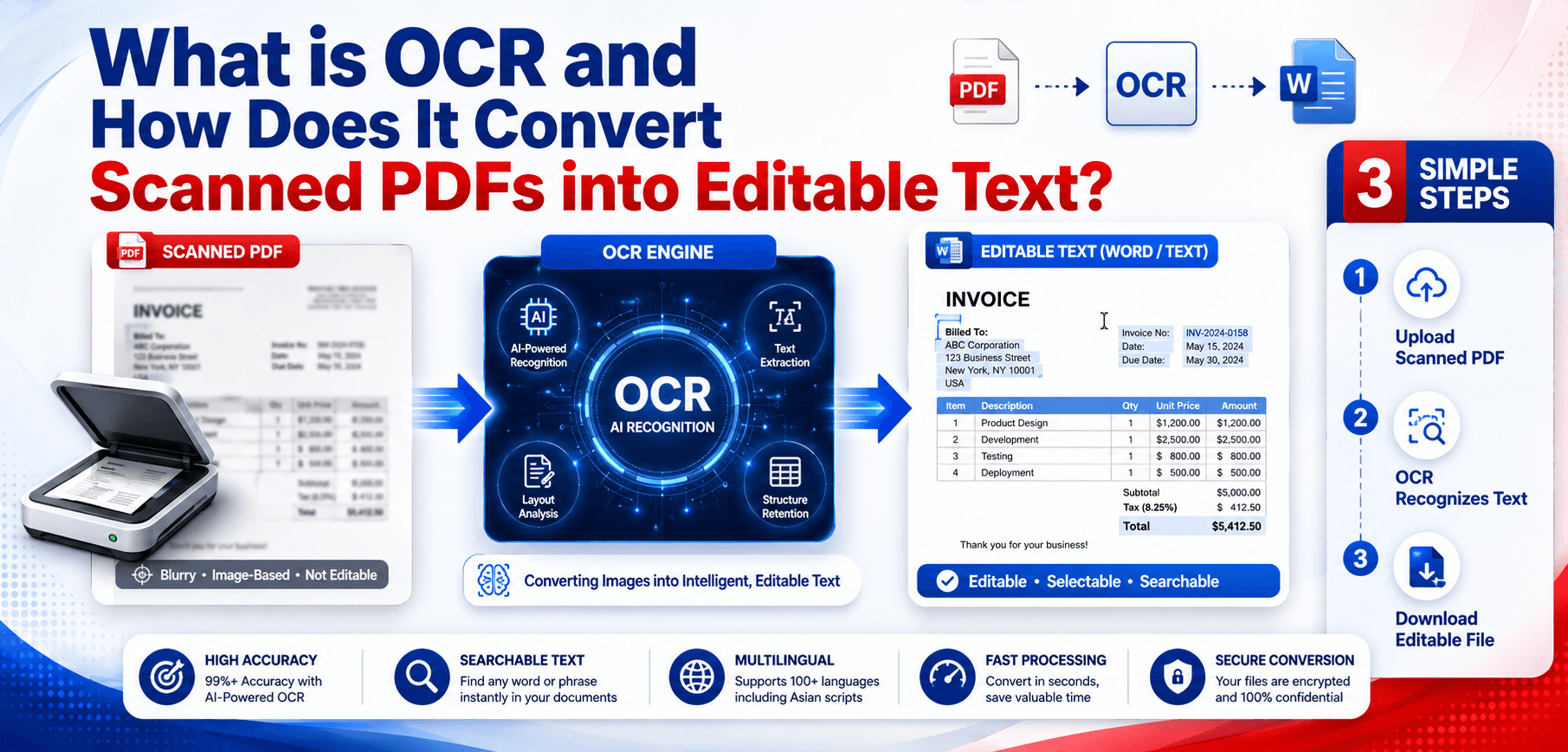
Have you ever received a scanned PDF document, only to find you cannot click, highlight, or edit a single word? For decades, scanned PDFs have operated like digital photographs—images locked onto a page, entirely unreadable by computers.
In 2026, as the demand for digital document management reaches unprecedented heights, manually retyping these locked documents is no longer a viable option. This is where OCR technology steps in. OCR is the bridge that transforms a static image into a dynamic, editable, and searchable file.
In this guide, we will explore what an OCR PDF is, how scan to text conversion works under the hood, and how you can seamlessly convert scanned PDF to editable text.
What is OCR?
OCR stands for Optical Character Recognition. It is a powerful software technology designed to recognize and extract printed or handwritten text characters inside digital images, scanned physical documents, and non-editable PDF files.
While the early iterations of OCR date back to the 1910s—initially developed to help the visually impaired read text—modern PDF text recognition is driven by advanced artificial intelligence (AI) and machine learning. Today, an OCR PDF converter can "read" a document much like a human does, recognizing individual letters, words, and full paragraphs with over 99% accuracy.
How OCR Works
Converting an image to text OCR format is a highly sophisticated process, but it can be broken down into five distinct steps:
Step 1: Image Capture
The document is digitized using a physical scanner or a smartphone camera. At this stage, the computer views the document purely as a grid of pixels (a picture of text, rather than actual text).
Step 2: Image Processing
The OCR software cleans the image. It aligns skewed pages, removes dark spots (despeckling), sharpens blurry edges, and converts the image to high-contrast black and white to make the letters stand out clearly from the background.
Step 3: Character Recognition
This is the core of OCR. The engine analyzes the dark areas (the text) and breaks them down into individual lines, words, and characters. Using pattern recognition and feature extraction, the AI compares the shapes of these marks against an extensive database of known fonts and languages.
Step 4: Text Extraction
Once the shapes are identified as letters (e.g., recognizing a circular shape as an 'O' or a zero), the software translates these visual elements into standardized digital text codes (like ASCII or Unicode).
Step 5: Editable Document Creation
Finally, the extracted digital text is rebuilt into an editable PDF, a Microsoft Word document, or a plain text file, preserving as much of the original layout, spacing, and formatting as possible.
What Is an OCR PDF?
When someone hands you a scanned PDF, they are handing you an image. An OCR PDF, conversely, is a special type of document that contains both the original image layer and a hidden, searchable text layer positioned exactly behind the visible text.
This "sandwich" structure means the document visually looks like the original scan, but you can highlight, copy, paste, and search for keywords within the file—combining the visual authenticity of a physical scan with the utility of a digital text file.
Why Scanned PDFs Cannot Be Edited Normally
- Image-Based Files: Scanners take photographs. They do not encode text data.
- Lack of a Text Layer: Word processors like Microsoft Word rely on structural text layers to allow editing. Scans lack this structure completely.
- Search Limitations: Because there is no actual text data, using "Ctrl+F" to search for a name or invoice number in a standard scan will yield zero results.
- Copy-Paste Restrictions: You cannot drag your cursor to highlight a sentence. Attempting to copy text usually just selects the entire page as a single picture.
Benefits of OCR for PDF Documents
Editable Text
Transform unyielding scans into fully fluid documents that can be updated, revised, and rewritten in Word or specialized PDF editors.
Searchable Documents
Instantly locate specific keywords, names, or dates across thousands of archived pages in seconds.
Faster Data Entry
Eliminate the need to manually retype data from printed forms into your digital CRM or database.
Improved Productivity
By automating data extraction, employees can focus on high-value tasks rather than mindless transcription.
Better Accessibility
OCR converts images to text, which allows screen readers to read documents aloud for visually impaired users.
Digital Archiving
Reduces physical storage costs. Text-based PDFs also consume significantly less hard drive space than high-resolution image scans.
Common OCR Use Cases
- Business Documents & Contracts: Rapidly digitizing signed vendor contracts so specific clauses can be searched and reviewed.
- Invoices & Receipts: Accounting departments use OCR to automatically extract transaction totals and dates into accounting software.
- Bank Statements: Converting paper financial records into editable Excel spreadsheets for data analysis.
- Academic Research Papers: Students and researchers extract quotes from scanned library books and older journals without retyping.
- Historical Archives: Libraries preserve delicate historical manuscripts by scanning and OCRing them for public digital search.
- Government Records: Digitizing decades of citizen records, tax forms, and legislative documents for secure, searchable databases.
OCR PDF vs Manual Data Entry
| Feature | OCR PDF Conversion | Manual Data Entry |
|---|---|---|
| Speed | Seconds per page | 10-15 minutes per page |
| Accuracy | High (98-99% for clear scans) | Prone to human typos and fatigue |
| Cost Efficiency | Very Low (Automated software) | High (Hourly labor costs) |
| Scalability | Can process thousands of pages daily | Severely limited by human bandwidth |
How to Convert Scanned PDFs into Editable Text
- Upload Scanned PDF: Navigate to an online OCR PDF converter and drag-and-drop your image-based PDF.
- Select OCR Mode & Language: Choose the language the document is written in to help the engine accurately identify characters.
- Choose Output Format: Select whether you want the output to be a Searchable PDF, Microsoft Word (.docx), or Plain Text (.txt).
- Process Document: Click "Convert." The cloud engine will perform the image processing and character extraction in seconds.
- Download Editable File: Save your newly digitized document to your hard drive.
- Review Extracted Text: Always do a quick proofread. While OCR is incredibly accurate, complex layouts or smudged ink can occasionally cause misread characters.
OCR Accuracy: What Affects Results?
Not all documents convert perfectly. Several factors influence how well the software can read your scan:
- Scan Quality & Image Resolution: Crisp, high-contrast scans captured at 300 DPI yield the best results. Low-resolution cellphone photos often fail.
- Font Types: Standard fonts like Arial or Times New Roman are easily recognized. Highly stylized, gothic, or cursive fonts lower accuracy.
- Document Layout: Simple paragraphs are easy. Complex multi-column layouts with floating images and tables require more advanced OCR engines.
- Handwritten Content: Standard OCR struggles heavily with handwriting. Specialized ICR (Intelligent Character Recognition) engines are required for messy cursive.
Common OCR Challenges & Best Practices
To get the best possible editable document, keep these best practices in mind:
- Ensure proper document alignment (avoid skewed or tilted scans).
- Remove unnecessary marks, coffee stains, or hole punches from the physical paper before scanning.
- Always select the correct language setting in the OCR software before processing.
- If dealing with blurry or low-resolution images, use photo editing tools to increase contrast and sharpness first.
- Use reliable, premium OCR software designed to handle multi-language documents and complex table layouts.
OCR Technology in 2026
In 2026, OCR has transcended basic text extraction. AI-powered OCR engines now feature deep machine learning improvements, allowing them to understand context rather than just letters. Handwriting recognition has vastly improved, and automated document processing pipelines can now ingest a messy invoice, read the text, identify what the total amount is, and automatically feed that data into enterprise accounting software—all without human intervention via cloud-based OCR systems.
Frequently Asked Questions (FAQs)
1. What does OCR stand for?
OCR stands for Optical Character Recognition. It is the technology that identifies text characters within images or scanned documents.
2. Can OCR convert scanned PDFs to editable text?
Yes. OCR software analyzes the image of a scanned PDF, extracts the letters it sees, and reconstructs them into an editable digital text format.
3. How accurate is OCR technology?
Modern AI-driven OCR engines achieve 98-99% accuracy on clean, high-resolution scans of standard printed text.
4. Does OCR work with handwritten documents?
Basic OCR is designed for printed text. However, advanced systems using Intelligent Character Recognition (ICR) can process neat handwriting with moderate accuracy.
5. Is OCR free to use?
There are many free online OCR tools available for casual users, though professional, bulk-processing OCR engines are typically paid services.
6. What file formats support OCR?
You can input JPG, PNG, TIFF, and scanned PDF files into an OCR engine. The outputs are usually Searchable PDFs, DOCX, XLSX, or TXT files.
7. What is the best OCR PDF converter?
The best converters are secure, cloud-based tools that utilize modern AI recognition models, support multiple languages, and accurately preserve original document formatting.
OCR Software Limitations
While OCR is highly advanced, it is important to understand its current limitations before relying on it for critical data extraction:
- Zero-Day Accuracy is Impossible: No OCR system is 100% accurate 100% of the time without human verification. A smudge on a piece of paper might turn a "3" into an "8".
- Mathematical Formulas: Standard OCR struggles to correctly format complex mathematical equations and symbols found in academic papers.
- Multi-layered Documents: Brochures with text overlapping complex background images or gradients can confuse the extraction engine.
Related Articles
Extract Text from Scans & Invoices
A deep dive into how businesses are using OCR to automate invoice processing and eliminate manual data entry.
Read ArticleOCR vs Manual Data Entry
Discover the hidden costs of manual data entry and why automation through OCR is the future of business efficiency.
Read ArticleConclusion
Optical Character Recognition (OCR) is nothing short of digital magic. It completely transforms how we interact with physical paperwork, allowing us to break information out of rigid, image-based scans and turn it into dynamic, editable, and searchable digital text.
Whether you are looking to accelerate your data entry processes, build a searchable digital archive, or simply need to edit a printed contract, utilizing a high-quality OCR PDF converter is an absolute necessity in 2026.
Ready to unlock the text in your scans?
Use our advanced OCR technology to instantly convert your scanned PDFs and images into fully editable, searchable documents today.