How to Extract Text from Scanned Documents and Invoices
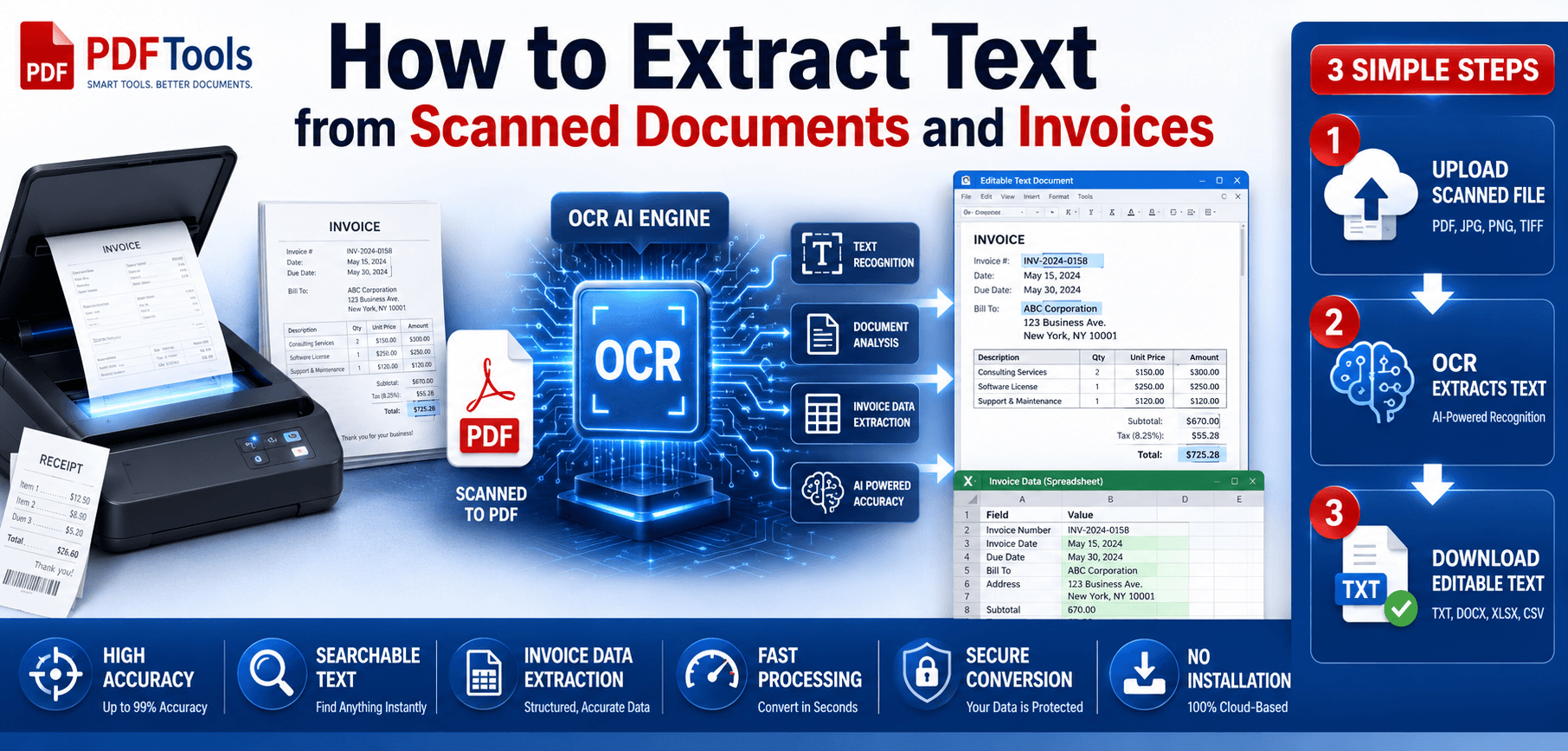
In today's fast-paced digital environment, dealing with physical paperwork—or digital images of paperwork—can severely slow down business operations. Have you ever received an urgent invoice or signed contract as a scanned PDF, only to realize that you cannot edit, copy, or search the text within it?
Scanned documents and image-based invoices are notoriously difficult to work with. For decades, the only solution was manual data entry: retyping every single line, total, and tax figure by hand. Not only is this excruciatingly slow, but it is also highly prone to human error.
Enter OCR technology. OCR (Optical Character Recognition) is the ultimate solution for bridging the gap between physical paper and digital data. In this comprehensive guide, we will explore how you can use AllPDFTools to seamlessly extract text from scanned documents and invoices, turning static images into editable, searchable data in seconds.
What Are Scanned Documents?
Before diving into text extraction, it's important to understand why scanned documents behave the way they do. When you place a piece of paper into a hardware scanner or take a picture with your smartphone, the resulting file—often an image-based PDF, JPG, or PNG—is simply a photograph of the page.
Common examples of scanned documents include:
- Image-based PDFs
- Scanned contracts and agreements
- Printed financial reports
- Paper receipts
- Vendor invoices
- Government-issued forms
To a computer, these files are just collections of pixels. There is no underlying text layer. Because of this, your computer does not know the difference between a letter "A" and a picture of a tree. They are not directly editable or searchable.
What Is OCR Technology?
OCR stands for Optical Character Recognition. It is an advanced software technology that identifies text characters inside digital images and converts them into machine-encoded text.
By utilizing pattern recognition and artificial intelligence, an OCR document scanner analyzes the shapes of the dark pixels against the light background. When it recognizes the shape of an "E" or a "5", it translates that visual shape into digital data. This image to text OCR process is what makes modern digital workflows possible, enabling you to digitize mountains of paperwork almost instantly.
How OCR Extracts Text from Scanned Documents
The text extraction process happens behind the scenes in milliseconds. Here is exactly what happens when you process a file:
Step 1: Upload Document
You upload the scanned image or PDF to the OCR software. The software loads the pixel data into its memory.
Step 2: Image Analysis
The engine prepares the document by "cleaning" it. It straightens tilted pages, sharpens blurry edges, and removes background noise or smudges.
Step 3: Character Recognition
The software scans line by line, comparing pixel patterns to a vast database of known fonts, symbols, and languages to identify individual letters and numbers.
Step 4: Text Extraction
The recognized characters are combined into words, sentences, and paragraphs, converting visual shapes into digital ASCII/Unicode text.
Step 5: Generate Editable Output
The final text is exported into a usable format, such as an editable scanned PDF, Microsoft Word document, or raw text file, ready for your use.
Why Businesses Need OCR for Invoices
Invoicing is the lifeblood of business, but processing them manually is a massive bottleneck. Implementing invoice OCR provides several transformative benefits:
- Faster Data Entry: A stack of invoices that would take an accountant hours to type up can be processed by OCR in seconds.
- Reduced Human Errors: Manual data entry inevitably leads to typos. Transposing a single number on a $10,000 invoice can cause massive headaches. OCR provides consistent precision.
- Better Record Management: Digitized, searchable invoices mean you can pull up vendor history instantly without digging through filing cabinets.
- Automated Accounting Workflows: Modern systems can extract the text and immediately feed it into platforms like QuickBooks or Xero.
- Digital Transformation: Transitioning from paper to searchable digital formats represents a key milestone in modernizing business operations.
Types of Documents That Can Be Processed
OCR isn't just for standard letters. You can use text extraction technology on a wide variety of document types:
How to Extract Text from Scanned Documents Using AllPDFTools
Extracting text is incredibly simple with the right software. Here is how you can do it using AllPDFTools:
- Open AllPDFTools OCR Tool: Navigate to the OCR PDF tool on the AllPDFTools website.
- Upload your Scanned PDF: Drag and drop your image or scanned document directly into the browser window.
- Select OCR Language: Choose the language the text is written in to ensure maximum accuracy.
- Start Text Recognition: Click the process button. AllPDFTools will run the document through its secure, high-speed OCR engine.
- Review Extracted Text: The text layer will be generated.
- Download Editable Output: Download your newly searchable PDF or export the text for use in your favorite word processor.
Common OCR Challenges & Practical Solutions
Even the best OCR software can stumble if the source document is flawed. Here are common challenges and how to overcome them:
Blurry Scans
Solution: Ensure your scanner is set to at least 300 DPI. If taking a photo, use adequate lighting to avoid motion blur.
Skewed Pages
Solution: Place the paper perfectly straight on the scanner glass. Use digital deskewing tools prior to OCR processing.
Handwritten Text
Solution: Standard OCR struggles with handwriting. Try to type important data or use specialized ICR (Intelligent Character Recognition) engines.
Complex Layouts
Solution: Documents with massive tables or mixed formatting may lose structural integrity. Double-check tables after extraction.
Tips to Improve OCR Accuracy
- Use high-resolution scans (300 DPI is the industry standard).
- Scan documents straight without tilting.
- Remove shadows and stains from the physical paper before capturing.
- Select correct language settings in the OCR tool to assist the dictionary engine.
- Use clear original documents rather than copies of copies.
- Always verify extracted text, especially for critical financial numbers.
- Use professional OCR tools like AllPDFTools for the highest fidelity conversion.
OCR for Invoice Processing
When extracting text from invoices specifically, OCR can intelligently capture vital data points:
- Invoice Number Extraction: Automatically identifying unique tracking IDs.
- Vendor Information Recognition: Capturing company names, addresses, and phone numbers.
- Tax Information Capture: Pulling GST/VAT numbers and specific tax percentages.
- Amount Recognition: Securing sub-totals, tax amounts, and the final grand total accurately.
- Date Extraction: Recognizing billing dates and due dates to prevent late payment fees.
By automating these data points, accounting teams can integrate extracted data directly into ERP systems, significantly reducing manual bookkeeping work.
OCR vs Manual Data Entry
Still considering typing it out by hand? Here is a side-by-side comparison of the two methods:
| Feature | OCR Extraction | Manual Entry |
|---|---|---|
| Speed | Instantaneous (seconds per page) | Slow (minutes per page) |
| Accuracy | Very High for printed text | Prone to human error & fatigue |
| Productivity | Maximizes employee output | Drains time and resources |
| Cost Efficiency | Extremely cost-effective | High labor costs |
| Scalability | Unlimited scalability | Limited by workforce size |
Best Use Cases for OCR
- Accounting Teams: Automating expense reports and invoice processing.
- Legal Firms: Digitizing thousands of pages of case files to make them searchable during discovery.
- HR Departments: Scanning employee records, resumes, and identification documents into HRIS databases.
- Healthcare Organizations: Converting paper patient intake forms into electronic health records (EHR).
- Educational Institutions: Digitizing textbooks and historical documents for online learning portals.
Future of OCR Technology in 2026
As we look toward the future in 2026, the evolution of AI-powered OCR is moving at breakneck speed. Smart invoice processing now uses machine learning to dynamically understand invoice layouts it has never seen before. Handwriting recognition improvements mean even messy doctor's notes can be digitized. With cloud-based document automation and multi-language OCR becoming standard, the barrier between physical paper and digital data has never been thinner.
Frequently Asked Questions (FAQs)
1. How can I extract text from scanned documents?
You can extract text by uploading your scanned document or image to an OCR tool like AllPDFTools. The software will process the image and provide you with an editable text file.
2. What is OCR?
OCR stands for Optical Character Recognition. It is a technology that analyzes images of text (like a scanned PDF) and converts them into machine-readable, editable text data.
3. Can OCR read invoices accurately?
Yes. Modern OCR tools are highly adept at extracting key data from invoices, including vendor names, total amounts, invoice numbers, and line items.
4. Is OCR suitable for business documents?
Absolutely. Businesses use OCR to digitize contracts, receipts, HR records, and tax forms, turning them into searchable and manageable digital files.
5. Can scanned PDFs become editable?
Yes. Running a scanned PDF through an OCR converter will generate a hidden text layer, allowing you to search, highlight, copy, and edit the document.
6. Does OCR work with images?
Yes, OCR is fundamentally an image-processing technology. It works perfectly with JPG, PNG, TIFF, and image-based PDF files.
7. What is the best OCR tool for invoices?
AllPDFTools offers a fast, secure, and accurate OCR processing engine that is perfectly suited for digitizing invoices and complex financial documents directly in your browser.
How AI is Revolutionizing OCR
Traditional OCR relies on strict rules and pattern matching. However, modern AI-driven OCR (often called Intelligent Character Recognition or ICR) goes a step further:
- Contextual Understanding: AI doesn't just read letters; it understands words in context, fixing typos automatically. If a smudge makes an 'e' look like a 'c' in the word "Invoice", the AI knows it should be an 'e'.
- Adaptive Learning: AI OCR models continuously learn from millions of documents, improving their accuracy on handwriting, obscure fonts, and varied layouts over time.
- Data Extraction: Beyond converting image to text, AI can identify *what* the text is—automatically tagging an extracted string of numbers as a "Total Amount" or a "Date".
Related Articles
Conclusion
Extracting text from scanned documents and invoices doesn't have to be a tedious, manual chore. By leveraging the power of Optical Character Recognition, businesses and individuals alike can save countless hours, dramatically reduce human error, and build highly organized digital archives.
Whether you're processing a single contract or digitizing hundreds of vendor invoices, a reliable OCR document scanner is an essential part of any modern workflow.
Ready to digitize your paperwork?
Stop typing out invoices by hand. Use AllPDFTools to extract text from your scanned documents accurately and securely.