PDF to JPG vs Screenshot: Which Produces Better Quality?
Whether you are a student compiling research, a marketer preparing a social media post, or a designer assembling a portfolio, you frequently need to extract images from PDF documents. Because PDFs are rigid, locked formats, extracting their content visually is often the fastest way to reuse it.
When faced with this task, users generally resort to one of two common methods: using a dedicated pdf to jpg conversion tool or simply pressing a shortcut key to take a screenshot.
At first glance, the results might look similar on your mobile phone screen. However, when you zoom in, attempt to print the image, or upload it to a professional website, the differences become starkly obvious. In this 2026 guide, we will break down the exact quality differences between pdf to image conversion and screenshots, helping you choose the right method for your needs.
Understanding PDF Files
To understand why extraction methods matter, we must look at how PDFs are built.
What Is a PDF?
The Portable Document Format (PDF) is a fixed-layout document designed to look identical on any device.
- Vector and image-based content: A high-quality PDF often contains vector graphics (which scale infinitely without losing quality) alongside embedded, high-resolution raster images.
- Why PDFs maintain quality: Because PDFs store the mathematical data of vector text and the original high-resolution data of embedded photos, they can be zoomed in significantly without becoming pixelated.
Why Convert PDFs to Images?
If PDFs are so high quality, why change them?
- Easier sharing: Most messaging apps and email clients display JPGs instantly in the chat window, whereas a PDF requires opening a separate viewer.
- Website uploads: Content Management Systems (CMS) like WordPress prefer standard image formats for blog thumbnails and inline graphics.
- Social media posts: Instagram, Facebook, and X (Twitter) do not allow native PDF uploads.
- Presentations: Pasting a JPG into PowerPoint or Keynote is much easier than embedding a PDF file.
What Is PDF to JPG Conversion?
When you convert pdf to jpg using dedicated software, you are performing a true file translation.
- How it works: A pdf image converter reads the underlying code of the PDF page and rasterizes it (turns it into pixels) based on specific mathematical rules.
- Exporting pages: It extracts the entire page exactly as the original author intended, without UI clutter.
- Resolution options: Professional converters allow you to set the DPI (Dots Per Inch), dictating exactly how sharp the resulting image will be.
What Is a Screenshot?
A screenshot is exactly what it sounds like: a digital photograph of your current screen monitor.
- How it captures content: Your operating system simply records the exact pixels currently illuminated on your physical display monitor.
- Device-dependent quality: A screenshot taken on a cheap 1080p laptop monitor will contain drastically less detail than a screenshot taken on a 4K Retina display.
- Typical use cases: Quick visual references, capturing error messages, or saving fleeting web content.
PDF to JPG vs Screenshot: Key Differences
To truly understand the gap in quality, let's look at the technical specifications:
| Feature | PDF to JPG Conversion | Screenshot |
|---|---|---|
| Image Quality | Exceptionally High | Variable (Depends on monitor) |
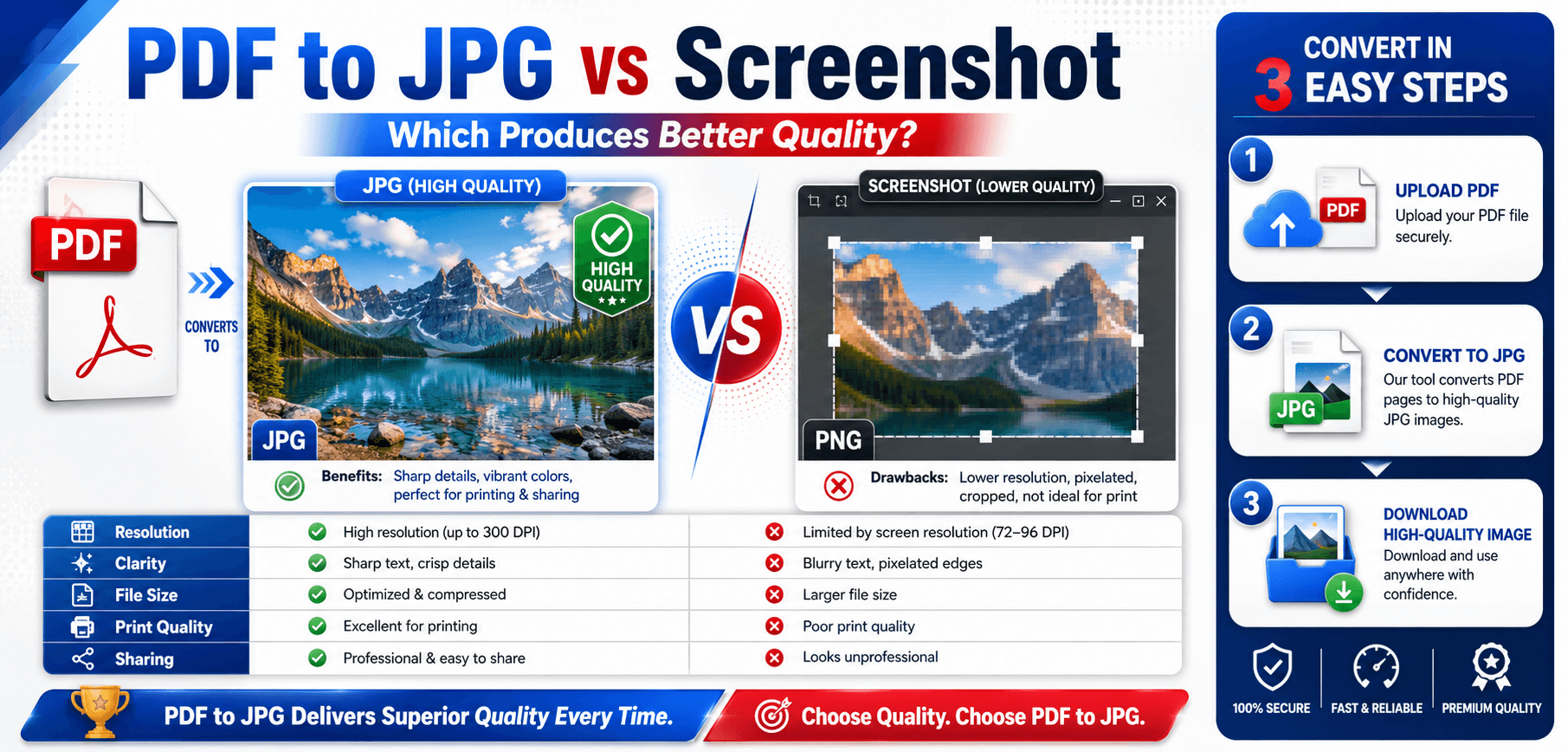
| Resolution | Customizable (Up to 600+ DPI) | Limited to screen display (72-144 DPI) |
| Text Clarity | Razor-sharp (Anti-aliased) | Often blurry when zoomed in |
| Print Quality | Print-ready (CMYK support possible) | Terrible (Only suitable for screens) |
| Professional Use | Industry Standard | Frowned upon / Unprofessional |
Which Method Produces Better Quality?
The clear winner for absolute quality is pdf to jpg conversion. Here is why:
Resolution Accuracy
When you save pdf as image through a converter, you can instruct the software to render the image at 300 DPI (the standard for high-quality printing). A screenshot is artificially limited by your physical monitor's resolution, usually rendering at a mere 72 to 144 DPI.
Sharp Text Rendering
Converters use anti-aliasing to smooth the edges of vector text as it translates into a JPG. Screenshots capture exactly what is on the screen, meaning if your monitor scales the PDF down to fit the window, the text will permanently lose those fine pixels.
Image Detail & Color Accuracy
If a PDF contains a 4K photograph, a converter will extract that photograph in its full, original glory. A screenshot will only capture the compressed, zoomed-out version. Furthermore, a converter bypasses your screen's artificial color profiles (like Blue Light filters), reading the true color codes embedded in the file.
When Should You Use PDF to JPG?
You should always use an online pdf to jpg tool in the following scenarios:
- Marketing Materials: When creating email newsletters or digital ads.
- Product Catalogs: Extracting pages to upload to an e-commerce gallery.
- Presentations: Ensuring the graphics on the projector screen remain razor-sharp.
- Website Graphics: Providing high-quality thumbnails for downloadable whitepapers.
- Social Media Content: Instagram and Pinterest reward highly visual, crisp content.
- Print Projects: Brochures, flyers, and posters.
When Is a Screenshot Enough?
Save yourself time and use a screenshot when absolute quality doesn't matter:
- Quick Collaboration: Highlighting a sentence in a Slack message.
- Internal Team Communication: Showing a colleague where a chart is located on a page.
- Temporary References: Saving a recipe or a confirmation number for personal use.
- Bug Reporting: Showing IT a formatting error on your screen.
Tips for Getting the Best PDF to JPG Quality
- Use high-resolution export settings: Always select at least 150 DPI for web use and 300 DPI for print.
- Select JPG quality levels carefully: If your tool asks, choose 80% to 100% quality to prevent heavy JPEG compression artifacts.
- Export directly from the PDF source: Avoid converting a PDF to Word, and then saving that Word document as an image.
- Avoid repeated image compression: Every time you save a JPG, it loses a tiny bit of quality. Try to get the conversion right on the first try.
- Use professional PDF conversion tools: Free, ad-riddled websites often throttle quality to save server costs. Use a reputable platform.
Frequently Asked Questions (FAQs)
1. Is PDF to JPG better than taking a screenshot?
Yes, significantly. Converting a PDF to JPG extracts the true, underlying data of the file at a customizable resolution, while a screenshot is a low-quality photograph limited by your monitor's display capabilities.
2. Why do screenshots look blurry?
Screenshots rely on your physical screen resolution (usually 72-144 DPI). When you zoom in on a screenshot or print it, there simply aren't enough pixels to render sharp lines, resulting in blurriness.
3. Does converting PDF to JPG reduce quality?
Because JPG is a 'lossy' format, some minor compression occurs. However, if you use a high-quality converter and set the resolution to 300 DPI, the quality loss is completely imperceptible to the human eye.
4. What resolution should I use for PDF to JPG?
Use 72 to 150 DPI for images intended for websites and social media (to keep file sizes small). Use 300 DPI for anything you intend to print physically.
5. Can I convert multiple PDF pages to JPG at once?
Yes! A good online PDF to JPG tool will automatically convert a 50-page PDF document into a convenient ZIP file containing 50 individual, high-quality JPG images.
6. Which method is best for printing?
You should never print a screenshot for professional use. Always use a dedicated PDF to JPG converter set to 300 DPI for print-ready clarity.
7. Are online PDF to JPG converters safe?
Yes, reputable online converters are highly secure. They utilize SSL encryption to protect your data during transit and automatically delete your files from their servers shortly after the conversion is complete.
Understanding JPG Compression
When using a professional PDF to JPG tool, you'll often have a choice regarding output quality. It's important to understand how JPG compression works:
- Lossy Format: JPG is a "lossy" compression format. This means it intentionally discards some data to keep the file size manageable.
- The 80% Rule: Setting your export quality to 80% or 90% usually reduces the file size by half while making the quality loss imperceptible to the human eye.
- Vector to Raster: Remember that once you convert the vector data of a PDF into the raster (pixel) data of a JPG, you cannot convert it back into a vector without specialized software.
Related Articles
Conclusion
When deciding between a pdf to jpg conversion and a quick screenshot, the choice ultimately comes down to your end goal. If you are just sharing a quick, temporary visual reference with a colleague in a chat app, a shortcut screenshot is perfectly fine.
However, if that image is destined for a website, a professional presentation, a social media campaign, or a physical printer, taking a screenshot is a massive mistake. To guarantee crisp text, accurate colors, and high-resolution details, you must perform a true conversion.
Don't settle for blurry images.
Use a secure, high-fidelity PDF to JPG Converter today to extract your pages with pixel-perfect accuracy!