Best Way to Convert Word Documents to PDF Without Formatting Issues
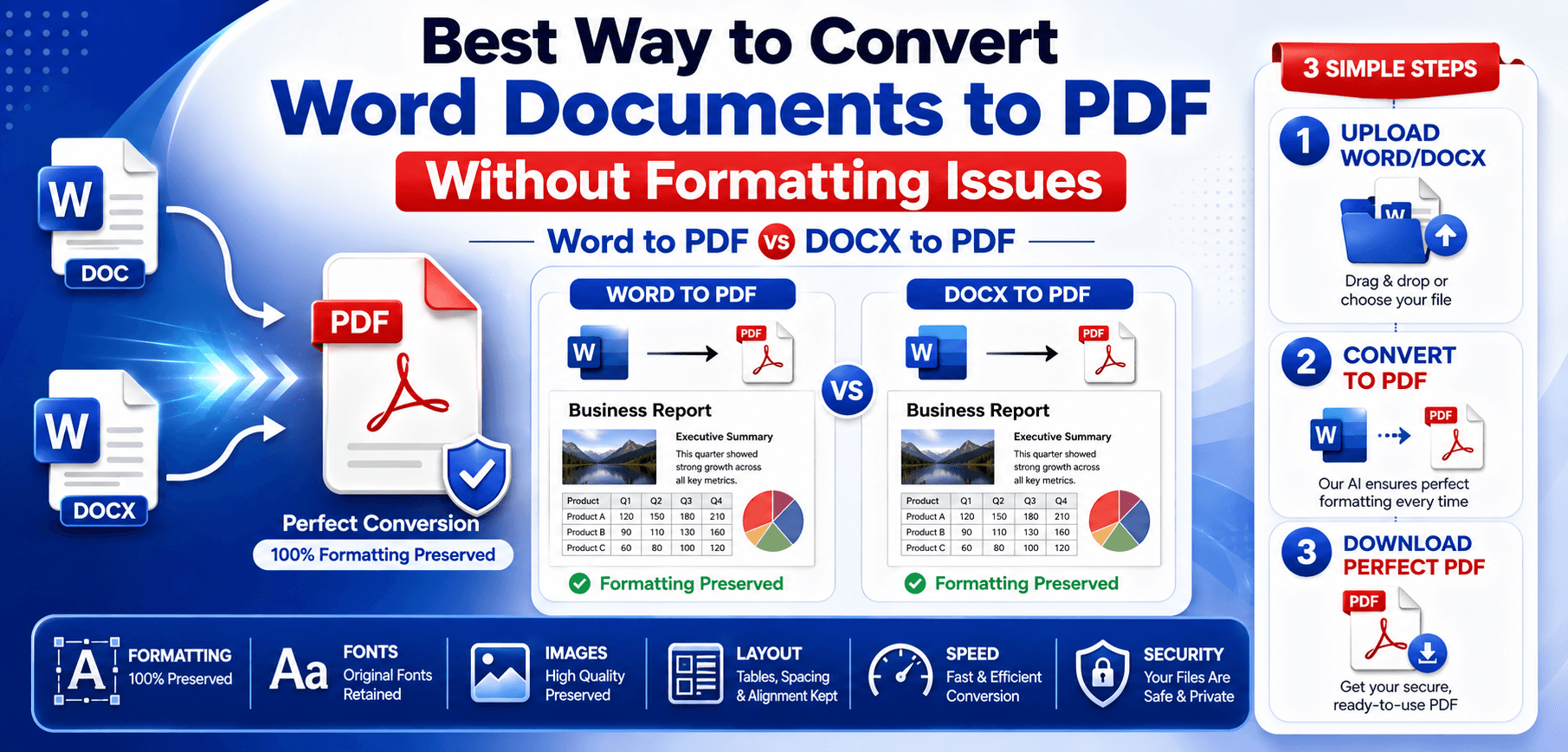
In today's fast-paced digital world, the Portable Document Format (PDF) remains the undisputed champion for sharing professional documents. Whether you are sending a resume, a legally binding contract, or an important client proposal, a PDF ensures that your document looks exactly the way you intended on any device.
However, anyone who has frequently used a pdf converter knows the frustration of a bad conversion. You spend hours meticulously formatting a word document to pdf, only to discover that the resulting file has shifting margins, misaligned images, or completely broken tables. These formatting errors look unprofessional and can undermine the credibility of your work.
In this comprehensive 2026 guide, we will explore the best ways to convert word to pdf flawlessly. We will break down why these frustrating formatting problems occur and provide actionable solutions to ensure your documents look perfect every single time.
Understanding Word and PDF Formats
To understand why formatting breaks during conversion, it helps to understand the fundamental differences between the two formats.
What Is a Word Document?
A Word Document is a file explicitly designed for text editing and content creation.
- DOC format: This was Microsoft's default binary format prior to 2007. It is a legacy format that is heavier and more prone to corruption.
- DOCX format: The modern standard, introduced in 2007. The "X" stands for XML. A DOCX file is essentially a zipped package of XML code, making it lighter, faster, and far more compatible with third-party software.
- Editable document advantages: Word documents are "flow-based." This means text wraps dynamically depending on screen size, printer settings, and installed fonts. This flexibility is brilliant for editing but terrible for consistent sharing.
What Is a PDF File?
A PDF is the exact opposite of a flow-based document.
- Fixed layout format: PDFs are rigid. They lock text, fonts, images, and vector graphics into precise coordinates on a digital page.
- Cross-platform compatibility: A PDF will look identical on a Windows PC, a Mac, an iPhone, or an Android tablet, regardless of what software is installed.
- Professional document sharing: Because it cannot easily be altered and displays consistently, PDF is the only acceptable format for finalized business and legal documents.
Why Convert Word to PDF?
If Word is so easy to use, why not just send a DOCX file? Converting a word document to pdf offers critical advantages:
- Preserving formatting: The main reason we convert is to lock the layout into place before sharing.
- Professional presentation: Sending a PDF signals that the document is a finalized, professional product, not a rough draft.
- Secure document sharing: PDFs can be encrypted, password-protected, and digitally signed to prevent unauthorized viewing or tampering.
- Universal compatibility: The recipient does not need Microsoft Office installed to open and read your file.
- Reduced editing risks: Sending a fixed PDF ensures that crucial numbers, clauses, or dates cannot be accidentally (or maliciously) altered by the recipient.
Common Formatting Problems During Conversion
When you save word as pdf, you are asking a flexible, flow-based layout to become a rigid, coordinate-based layout. This complex translation process often leads to several common issues.
Font Changes
If you use a custom or rare font in your Word document and it fails to embed properly during conversion, the PDF software will automatically substitute it with a default font (like Arial or Times New Roman). This completely ruins the visual aesthetics and spacing.
Image Misalignment
Images anchored to specific paragraphs in Word may jump to the next page or overlap with text during conversion, especially if "Wrap Text" settings are not configured correctly.
Table Formatting Errors
Complex tables with merged cells, specific column widths, or hidden borders often break during conversion. Text might overflow out of cells, or borders may suddenly become visible.
Broken Hyperlinks & Missing Graphics
Some basic online converters flatten the document into an image, destroying clickable URLs. Additionally, SmartArt or layered transparent graphics sometimes fail to render in the final PDF, leaving blank spaces.
Page Break, Margin, and Spacing Issues
Because different printers calculate margins differently, a document that fits perfectly on one page in Word might spill over onto a second page. Line spacing and paragraph padding can inexplicably shrink or expand during conversion, throwing off the entire symmetry.
Best Ways to Convert Word Documents to PDF
Here are the most reliable methods to convert docx to pdf while keeping your formatting intact.
Method 1: Save As PDF in Microsoft Word
For everyday use, the built-in saving feature is highly reliable. Open your document in Word. Click File > Save As. In the 'Save as type' dropdown, select PDF (*.pdf). Click Save. It is free, built-in, and generally maintains basic formatting perfectly, though it can struggle with very complex, layered graphics.
Method 2: Export to PDF
When your document contains custom fonts or complex layouts that 'Save As' struggles with, use this. Go to File > Export > Create PDF/XPS Document. This method often triggers Word's more advanced rendering engine, resulting in better font embedding.
Method 3: Online Word to PDF Converters
For users who do not have Microsoft Word installed, web-based tools are lifesavers. No software installation is required, and they work on any OS. Always use a reputable word to pdf converter that uses SSL encryption and automatically deletes your files from their servers after processing.
Method 4: Professional PDF Software
For power users, dedicated PDF editors install custom "virtual printers" on your computer that convert files with flawless accuracy. They also offer batch conversion support to easily convert dozens of DOCX files into PDFs simultaneously, ideal for legal and corporate environments.
Method 5: Cloud-Based Conversion Tools
Upload a DOCX to Google Docs, then click File > Download > PDF Document. Alternatively, using Word Online in Microsoft 365 to download as a PDF is incredibly accurate because it uses Microsoft's native cloud rendering engine.
Word to PDF vs DOCX to PDF
Does the original file format matter when converting? Yes.
| Feature | Word to PDF (.DOC) | DOCX to PDF (.DOCX) |
|---|---|---|
| Compatibility | High for older engines | Excellent for modern converters |
| Formatting Accuracy | Moderate; layouts may break | Exceptionally High |
| File Size | Generally larger and slower | Highly compressed and efficient |
| Modern Features | Lacks support for new SmartArt | Perfect rendering of new elements |
| Conversion Speed | Slower | Blazing fast due to XML structure |
Explanation: Always ensure your document is saved in the modern DOCX format before converting. A docx converter processes XML data much more accurately than the binary blobs of legacy DOC files, drastically reducing formatting errors.
Tips to Preserve Formatting During Conversion
- Embed fonts before conversion: In Word, go to
Options>Saveand check "Embed fonts in the file." This guarantees custom fonts survive the conversion. - Use standard fonts: If possible, stick to web-safe fonts like Arial, Calibri, or Times New Roman to completely eliminate substitution errors.
- Check page breaks: Use manual Page Breaks (
Ctrl + Enter) instead of hitting theEnterkey repeatedly to start a new page. - Optimize images: Resize and compress images before placing them into Word to prevent massive PDF file sizes.
- Review document styles: Use Word's built-in "Heading" styles rather than manually changing font sizes. Converters read these styles perfectly.
- Test hyperlinks: Always click your links in the final PDF to ensure they survived the transition.
- Use the latest DOCX format: Never convert a legacy .doc file if you can avoid it.
Best Practices for Business Documents
- Contracts: Ensure all text is finalized. Use 'Export to PDF' to embed fonts, ensuring the legal document looks identical on the client's screen.
- Reports: Reports often contain complex Excel charts pasted into Word. Always paste them as "Pictures" rather than dynamic data links before converting to PDF.
- Proposals: For design-heavy proposals, professional PDF software will yield the most accurate visual results.
- Invoices: Simple online converters are perfect for standard, text-based invoice templates.
- Presentations: Ensure all slide margins are within the printable area before exporting.
Common Conversion Mistakes to Avoid
- Using outdated file formats: Stop using .doc. Upgrade your files to .docx before converting.
- Missing fonts: Forgetting to embed custom brand fonts ruins corporate aesthetics.
- Ignoring print layout view: Always switch to "Print Layout" view in Word before saving. What you see there is what the PDF will look like.
- Low-quality images: A PDF will magnify pixelated images. Start with high-resolution graphics.
- Not reviewing the final PDF: Never email a converted PDF without opening it first to check for stray blank pages or broken tables.
Future of Document Conversion in 2026
- AI-powered formatting correction: Converters will soon automatically detect and fix misaligned tables and orphaned text blocks during the conversion process.
- Automated document optimization: Software will intelligently compress images based on whether the PDF is meant for web viewing or high-quality printing.
- Cloud collaboration: Real-time conversion engines will allow multiple users to preview the final PDF simultaneously while editing the source DOCX file.
- Smart PDF generation: Dynamic PDFs will auto-generate based on web data inputs without ever needing to exist as a Word file first.
- Enhanced OCR integration: Even scanned images placed inside Word documents will be instantly readable and searchable in the resulting PDF.
Frequently Asked Questions (FAQs)
1. What is the best way to convert Word to PDF?
For most users, using Word's native 'File > Export > Create PDF' feature is the best way to preserve complex formatting offline. For quick conversions without Office installed, a reputable online pdf converter is best.
2. Why does formatting change after conversion?
Formatting changes occur when a flow-based document (Word) is forced into a fixed layout (PDF). Missing fonts, varying printer margin settings, and complex layered graphics are the most common culprits.
3. Does DOCX convert better than DOC?
Yes, absolutely. DOCX is an XML-based format that modern conversion algorithms can read and translate with much higher accuracy than the outdated binary DOC format.
4. Can I convert Word to PDF without losing quality?
Yes. By embedding your fonts, ensuring high-quality source images, and using a high-fidelity conversion tool, the resulting PDF will be pixel-perfect.
5. Are online Word-to-PDF converters safe?
Yes, provided you use trusted platforms. Reliable online converters utilize SSL encryption and automatically delete your uploaded files from their servers shortly after the conversion is complete.
6. How do I preserve fonts in PDF files?
In Microsoft Word, navigate to 'File > Options > Save' and check the box that says 'Embed fonts in the file' before you save or export as a PDF.
7. Which format is best for professional document sharing?
PDF is the absolute standard for professional sharing. It guarantees cross-platform compatibility, protects your formatting, and prevents unauthorized edits.
Preserving Image Quality
A major formatting issue users face is perfectly crisp images in Word becoming heavily pixelated in the final PDF. Here is how to fix it:
- Disable automatic compression: In Word, go to
File>Options>Advanced>Image Size and Qualityand check "Do not compress images in file". - Use the correct PDF preset: If exporting from Word, always ensure "Standard (publishing online and printing)" is selected rather than "Minimum size (publishing online)".
- Professional converters: If you use an online tool or dedicated PDF software, ensure it allows you to set the output DPI to at least 300 for maximum image clarity.
Related Articles
PowerPoint to PDF Conversion
Stop your presentation slides from breaking. Learn the secrets to flawlessly converting PowerPoint decks into PDFs.
Read ArticleSign PDF Documents Securely
Once you've converted your contract, learn how to quickly and securely add legally binding digital signatures.
Read ArticleConclusion
Converting a word document to pdf shouldn't be a gamble. While formatting errors like shifting images, broken tables, and substituted fonts are incredibly frustrating, they are entirely preventable. By understanding the differences between flow-based and fixed-layout formats, and by adhering to simple best practices like embedding fonts and using the modern DOCX format, you can achieve perfect conversions every time.
Whether you rely on Microsoft Word's native export features, professional desktop software, or a fast browser-based word to pdf converter, preserving your document's integrity is easier than ever in 2026.
Ready to convert perfectly?
Stop wrestling with broken formatting. Use a secure, high-quality PDF Converter tool today to ensure your professional documents always look exactly the way you intended!