How to Convert PowerPoint Presentations into Professional PDFs
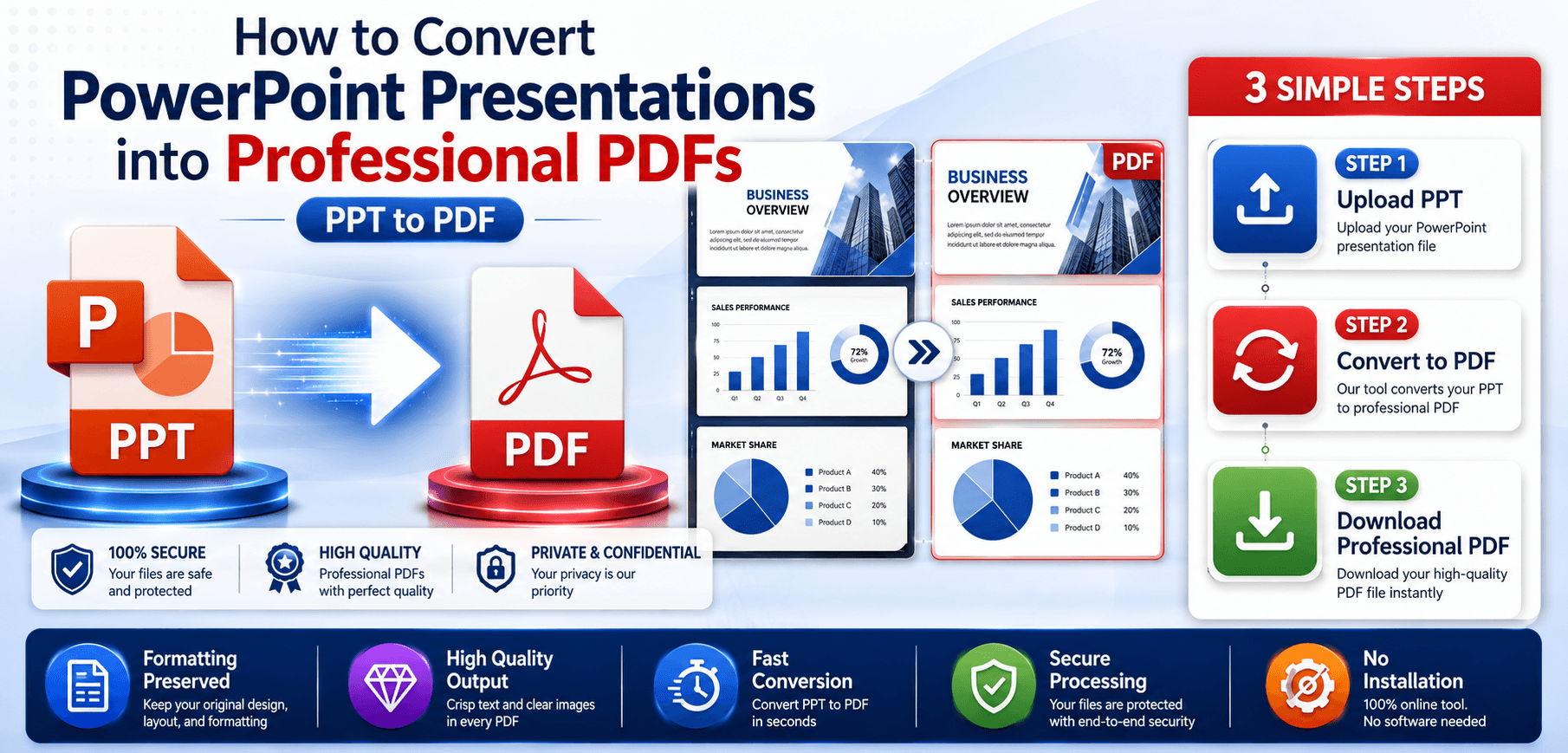
In the business and academic worlds, PowerPoint is the undisputed king of presentation creation. However, when it comes time to share that carefully crafted deck with clients, investors, or students, sending the raw file is rarely the best choice.
Sharing a native PowerPoint file directly often leads to frustrating issues: missing corporate fonts, distorted images, shifting layouts, and the ever-present risk that someone might accidentally alter your data. That is exactly why the Portable Document Format (PDF) remains one of the most preferred formats for sharing presentations globally.
In this comprehensive 2026 guide, we will explore the best methods to convert ppt to pdf. By using a reliable powerpoint pdf converter, you can lock in your brilliant designs, ensure universal compatibility, and present your ideas with absolute professionalism.
Understanding PPT and PDF Formats
To understand the value of conversion, let's briefly look at how these two very different file formats operate.
What Is a PowerPoint Presentation?
PowerPoint files are dynamic, editable workspaces designed for live presenting.
- PPT and PPTX file formats: PPT is the legacy binary format, while PPTX is the modern, XML-based standard used since 2007. Both are designed to be fluid.
- Editable presentation files: Everything in a PowerPoint file—text boxes, images, and charts—can be moved, resized, or deleted by anyone who opens the file.
What Is a PDF File?
A PDF is essentially a digital printout.
- Fixed-layout format: A PDF permanently locks text, fonts, and images into exact coordinates on a page.
- Universal compatibility: A PDF will look identical on a Mac, a Windows PC, an iPad, or an Android phone, regardless of what software is installed.
Why Convert PowerPoint to PDF?
Choosing to save powerpoint as pdf before hitting "send" on an email offers crucial advantages:
- Consistent formatting: What you see on your screen is exactly what your recipient will see on theirs.
- Easy sharing: PDFs are universally accepted and easily previewed directly in email clients and web browsers.
- Better security: You can password-protect PDFs or restrict printing and copying.
- Reduced file modification risks: Prevents accidental (or intentional) changes to your crucial financial data or sales messaging.
- Professional appearance: A pdf presentation feels finalized, polished, and ready for executive review.
PPT to PDF vs Sharing a PowerPoint File
Let's break down exactly why you should stop sharing raw presentation files:
| Feature | PPT/PPTX | |
|---|---|---|
| Editing Allowed | Yes (Anyone can change your data) | No (Requires specialized software) |
| Device Compatibility | Requires MS Office or compatible app | Universal (Works on any device) |
| File Security | Low | High (Encryption & password support) |
| Formatting Consistency | Poor (Fonts and layouts often break) | Perfect (Pixel-perfect retention) |
| Printing Quality | Variable based on printer settings | Excellent and highly predictable |
Explanation: While PPT is necessary for creating the presentation, a PDF is vastly superior for sharing the presentation.
Best Ways to Convert PowerPoint Presentations to PDF
There are several reliable ways to achieve a flawless presentation to pdf conversion.
Method 1: Save As PDF in Microsoft PowerPoint
Open your presentation. Click File > Save As. Choose your destination. In the 'Save as type' dropdown, select PDF (*.pdf). It is built directly into the software and is incredibly fast. Remember to click 'More options' and ensure 'Standard (publishing online and printing)' is selected for the best image quality.
Method 2: Export PowerPoint to PDF
Go to File > Export > Create PDF/XPS Document. This menu allows you to fine-tune whether hidden slides are included, or if document properties are stripped out. You can also choose to export your slides as "Handouts" (e.g., 3 slides per page with note lines).
Method 3: Online PPT to PDF Converters
For users without Microsoft Office installed, web-based tools are lifesavers. You can perform an online ppt to pdf conversion from any device. Always use a reputable ppt converter that uses SSL encryption and automatically deletes your uploaded files.
Method 4: Cloud-Based Conversion Tools
Using PowerPoint Online allows you to download your deck as a PDF using Microsoft's native cloud rendering engine. You can also upload a PPTX to Google Slides, then click File > Download > PDF Document.
Method 5: Professional PDF Software
For power users and enterprise environments, dedicated PDF editors install a "virtual printer" that yields higher fidelity color reproduction for print. They also allow you to batch convert dozens of PowerPoint files simultaneously.
How to Preserve Presentation Quality During Conversion
- High-Resolution Images: Go to
File>Options>Advanced, and check "Do not compress images in file" to ensure your PDF photos remain sharp. - Fonts and Typography: Navigate to
File>Options>Saveand check "Embed fonts in the file." This guarantees your typography survives the conversion. - Slide Layouts: Verify that no text boxes are overflowing the physical edge of the slide canvas, as these will be abruptly cut off.
- Embedded Media: Embedded videos will not play in a standard PDF. Replace videos with a high-quality thumbnail image and a hyperlink to the hosted video.
Common PPT to PDF Conversion Problems
Missing Fonts
Problem: Text defaults to Times New Roman. Solution: Embed your custom fonts in PowerPoint before exporting, or use a converter that natively supports font embedding.
Layout Shifts
Problem: Text boxes jump around. Solution: This usually happens when opening a newer PPTX in an older version of PowerPoint before exporting. Use a modern, cloud-based converter.
Hyperlink Issues
Problem: Clickable links are dead in the PDF. Solution: Ensure you use the 'Export' feature rather than 'Print to PDF' (which often flattens the file and destroys hyperlinks).
Animation Limitations
Problem: Slide transitions are gone. Solution: PDFs are static documents. If animations are vital, you must share the original PowerPoint or export it as an MP4 video.
PPTX to PDF: Is There a Difference?
When converting, does the original format matter? Yes. PPT is the outdated binary format, while PPTX is the modern XML format. Modern converters handle both, but PPTX files are much easier for software to read accurately. Converting a pptx to pdf generally results in fewer layout errors and faster processing times. Always save older .ppt files as .pptx before attempting a conversion.
Frequently Asked Questions (FAQs)
1. How do I convert PPT to PDF?
The easiest way is to open your file in PowerPoint, click File > Export > Create PDF. Alternatively, you can use a free, secure online PPT to PDF converter.
2. Does PPT to PDF preserve formatting?
Yes. Converting to PDF is specifically designed to lock in your fonts, images, and layouts so they never shift or break, regardless of what device opens the file.
3. Can animations be saved in a PDF?
No. A PDF is a static document format. Slide transitions, GIF animations, and build-in effects will not work in a PDF.
4. Is PPTX to PDF better than PPT to PDF?
Yes. PPTX is a modern XML format that converters can read much more accurately than the legacy, binary PPT format, resulting in fewer formatting errors.
5. How can I reduce PDF file size after conversion?
If your resulting PDF is too large to email, run the file through a dedicated online PDF Compressor tool to reduce the file size while maintaining visual quality.
6. Are online PPT to PDF converters safe?
Reputable online converters are incredibly safe. They use SSL encryption for file transfers and automatically delete your uploaded presentation from their servers shortly after processing.
7. Which format is best for sharing presentations?
PDF is the absolute best format for sharing. It ensures your presentation looks exactly as you designed it, prevents unauthorized editing, and can be opened on any device.
File Size Considerations
Converting a 50-slide PowerPoint filled with high-resolution images can result in a massive PDF file that is difficult to email. To mitigate this:
- Compress Pictures in PPT first: Before exporting, select any image in your deck, go to the 'Picture Format' tab, click 'Compress Pictures', and choose 'Email (96 ppi)'.
- Use a PDF Compressor post-export: If the exported PDF is still too large, run it through a dedicated PDF compressor to shrink the file size by up to 80% without noticeable quality loss.
Related Articles
Reduce PDF File Size (2026 Guide)
A comprehensive look into PDF optimization, including hidden factors that cause your PDFs to become bloated.
Read ArticleWord to PDF Formatting Guide
Stop your Word documents from shifting when exporting. Learn the absolute best way to convert Word to PDF.
Read ArticleConclusion
Sharing a raw PowerPoint file is a gamble. Between missing fonts, shifted text boxes, and accidental data alterations, you risk presenting a sloppy, unprofessional image to your clients and colleagues.
Learning how to properly convert ppt to pdf solves all of these problems instantly. By utilizing high-resolution export settings, embedding your fonts, and relying on modern conversion tools, you can transform your dynamic slides into a secure, perfectly formatted pdf presentation that is ready for the boardroom.
Ready to present perfectly?
Don't let formatting errors ruin your hard work. Protect your designs and ensure universal compatibility by using a reliable PowerPoint to PDF Converter today!