How to Reduce PDF File Size Without Losing Quality (Complete Guide 2026)
Have you ever tried to email an important document, only to be hit with the dreaded "File size too large" error? We have all been there. PDFs are the undisputed king of digital documents, trusted for their reliable formatting across all devices. However, this reliability often comes at the cost of massive file sizes.
Whether you are a student submitting assignments, a professional emailing reports, or a freelancer sending invoices, dealing with large PDFs can be a major headache. The good news is that you don't have to sacrifice readability for size. In this comprehensive 2026 guide, you will learn exactly how to reduce PDF file size without losing quality.
1. Why PDF File Size Matters in 2026
You might be wondering: with high-speed internet and massive cloud storage becoming the norm in 2026, does PDF size still matter? The short answer is yes, more than ever.
- Email Attachments: Most email providers still enforce strict attachment limits (usually around 25MB). If your file exceeds this, you are forced to use third-party links, which can look unprofessional or trigger spam filters.
- Website Uploads: Large PDFs slow down website load times, negatively impacting user experience and SEO rankings. If you are uploading documents to a portal or your own site, PDF optimization is crucial.
- Cloud Storage Limits: While cloud storage is common, it is not infinite. Storing thousands of unoptimized, bulky PDFs will quickly eat up your paid storage space.
- Document Sharing and Mobile: More people are opening documents on smartphones over cellular networks. A smaller PDF ensures faster downloads and saves mobile data, making document sharing seamless.
2. Common Reasons PDFs Become Too Large
Before you can effectively reduce PDF size, it helps to understand why they get so big in the first place. Several unseen factors contribute to bloated files:
High-Resolution Images
This is the most common culprit. A PDF filled with raw, uncompressed, high-DPI (dots per inch) images will have an enormous file size.
Embedded Fonts
To ensure your document looks exactly the same on any device, PDF creators often embed entire font families into the file.
Scanned Documents
When you scan a physical document, it is often saved as a series of high-resolution images rather than searchable text, leading to massive files.
Additionally, excessive metadata and complex graphics (like vector layers or embedded videos) add significant weight to the document.
3. Best Methods to Reduce PDF File Size Without Losing Quality
The secret to compressing a PDF correctly is finding the perfect balance between file size and visual fidelity. Here are the most effective methods to achieve this:
- 1
Compress Images Smartly
Since images usually take up the most space, intelligent image compression is key. Instead of using 300 DPI images meant for high-end printing, downsample them to 72 or 144 DPI, which is perfectly clear for screen viewing.
- 2
Remove Unnecessary Metadata
Stripping out background data—like XML metadata, private application data, and embedded page thumbnails—can shave off megabytes without changing a single pixel of the visible document.
- 3
Optimize Fonts
Instead of embedding entire font sets (including bold, italic, and hundreds of special characters you aren't using), optimizing the PDF to only embed subsets (the specific characters actually used in the text) significantly cuts down file size.
- 4
Convert Scanned PDFs Efficiently
If your PDF is a scanned image, use Optical Character Recognition (OCR) technology to convert the image text into actual, selectable text. Text takes up fractions of a kilobyte compared to images of text.
4. Step-by-Step Guide to Compress PDFs Online
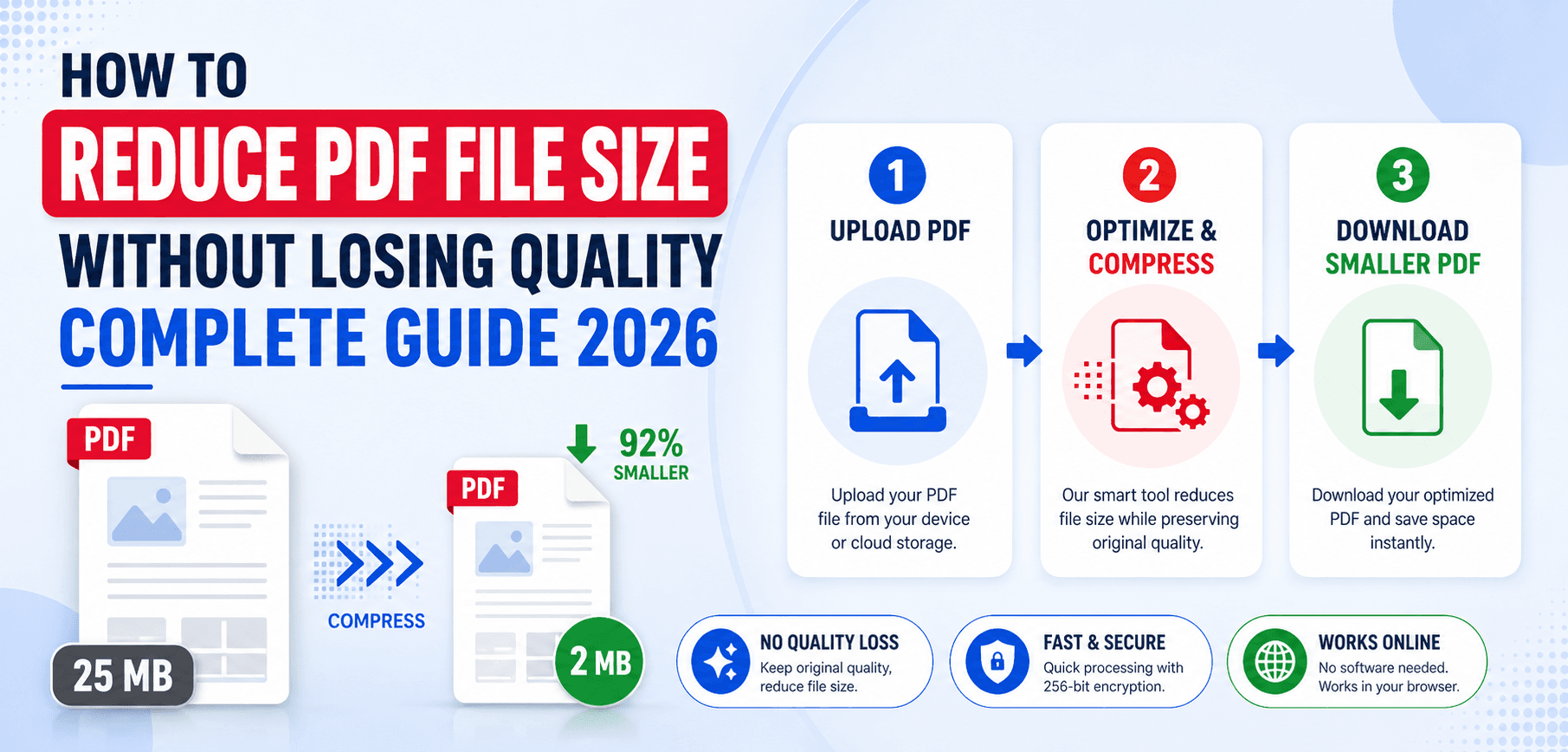
The easiest and fastest way to reduce your file size is to compress PDF online. Here is a simple guide to using our free PDF compression tool directly from your browser:
- Choose the compressor: Navigate to the Compress PDF Tool.
- Upload your file: Drag and drop your heavy PDF into the designated area, or click to browse your local files.
- Select your compression level: Choose 'Recommended' compression for a great balance of size and quality, or 'Extreme' if you need the absolute smallest size.
- Compress and wait: Click the compress button. Your file will be optimized securely in seconds.
- Download your optimized PDF: Save the new, smaller file back to your device.
5. How to Reduce PDF Size on Different Platforms
On Windows
If you prefer offline solutions on a Windows PC, you can use the built-in "Print to PDF" feature. Open your document in any reader or browser, hit 'Print', and select 'Microsoft Print to PDF'. This essentially rewrites the file, often resulting in a smaller size, though it may flatten interactive elements. Alternatively, you can use Microsoft Word to save a document as a "Minimum size" PDF.
On Mac
Mac users have a fantastic built-in tool that makes PDF optimization incredibly simple. Open your PDF with the default Preview app. Go to File > Export (do not choose Export as PDF). In the Quartz Filter dropdown menu, select Reduce File Size. Finally, hit 'Save'.
On Mobile Devices
Managing PDFs on the go is essential in 2026. For both iOS and Android, the quickest method is to use your mobile browser (like Safari or Chrome) and head to our web-based PDF compressor. Upload from your local storage and download the compressed version in seconds, without downloading clunky apps.
6. Common Mistakes to Avoid
- Compressing already compressed files: Trying to compress the same PDF multiple times will yield diminishing returns and eventually degrade text and image quality.
- Ignoring the source file: If you have the original Word or PowerPoint file, optimize the images before exporting to PDF. This yields the best quality-to-size ratio.
- Using the wrong compression level: Using "Extreme" compression on a document with detailed architectural blueprints or high-art photography will result in visible artifacts. Always use recommended settings for visual documents.
Frequently Asked Questions
Will compressing a PDF make it blurry?
Not if you use the right tool. Modern tools use smart algorithms to downsample images and remove hidden data so you can reduce PDF file size without losing quality.
Is it safe to compress PDFs online?
Yes, reputable online tools use secure connections and automatically process your files securely, ensuring your data remains private.
Can I compress a PDF for free?
Absolutely! There are many highly effective free PDF compression tools available online that do not require software installation or watermarking.
How do I know how large my PDF is?
Right-click the file on Windows and select 'Properties', or right-click on Mac and select 'Get Info'. The size will be clearly displayed.
7. Pro Tips for Maximum Compression
- Flatten your PDF: If your document has multiple transparent layers or fillable form fields, flattening the document into a single layer will significantly reduce its size.
- Convert colors to Grayscale: If color isn't necessary for your document (like a text-heavy contract), converting the entire PDF to black and white or grayscale will drastically reduce the file size.
- Audit your PDF: Advanced tools like Adobe Acrobat Pro have a "PDF Optimizer" feature that lets you audit space usage to see exactly whether images, fonts, or embedded files are taking up the most room.
Related Articles
Merge vs Split PDF: When to Use Each Tool
Confused about PDF document management? Learn the exact differences between Merge vs Split PDF tools.
Read ArticleThe Ultimate Guide to Organizing PDFs
Learn how to manage, store, and optimize your entire digital library of PDF documents efficiently.
Read ArticleReady to shrink your documents?
Reduce PDF file size without losing quality using our secure, fast, and free online tool.