
How to Convert PDF Tables into Excel Spreadsheets Accurately
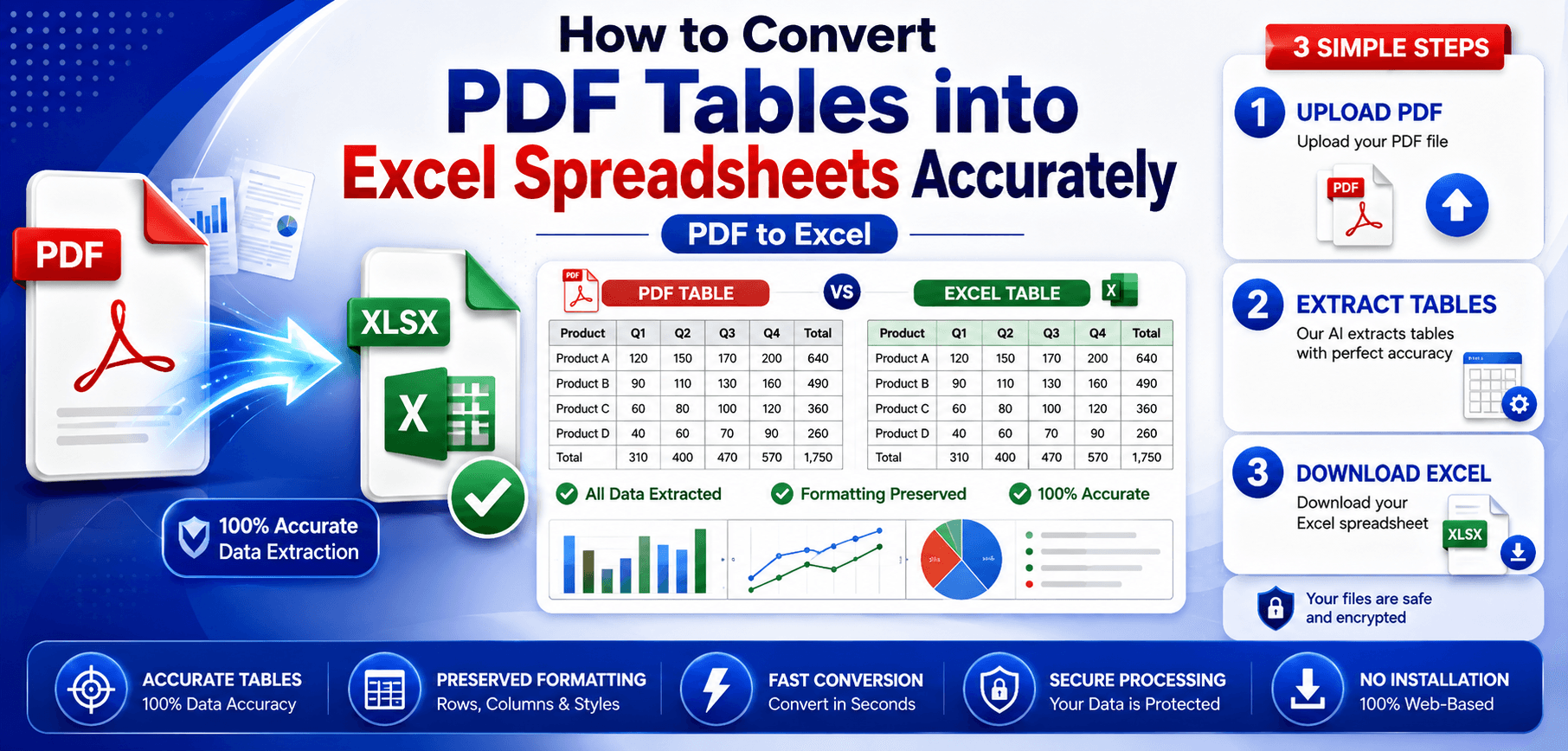
In modern business environments, data is king. Finance teams, data analysts, and office administrators constantly process massive amounts of numerical information. Often, this vital data arrives locked in a PDF format. While PDFs are excellent for sharing and securing finalized reports, they are incredibly frustrating when you need to run calculations, sort data, or generate charts.
The traditional solution—manually re-entering data from a PDF into an Excel spreadsheet—is not only tedious but highly prone to human error. A single misplaced decimal point can throw off an entire financial quarter.
Fortunately, manual data entry is a thing of the past. In this 2026 guide, we will explore how to effortlessly convert pdf to excel while maintaining perfect accuracy. By utilizing a reliable pdf to excel conversion tool, you can extract complex tables, preserve your columns and rows, and supercharge your productivity.
Understanding PDF and Excel Formats
To understand why data extraction can be tricky, we must look at how these two very different file formats handle information.
What Is a PDF File?
The Portable Document Format (PDF) was built for visual consistency, not data manipulation.
- Fixed-layout document format: A PDF acts like a digital photograph of a document. It locks text and numbers into precise visual coordinates on a page.
- Benefits and limitations: While this ensures the document looks identical on any device, it means the PDF has no inherent understanding of "tables," "rows," or "columns." To the PDF, a table is just a collection of random lines and floating numbers.
What Is an Excel Spreadsheet?
Microsoft Excel files (typically in the XLSX format) are dynamic grids built specifically for data logic.
- Rows and columns: Data is structurally organized into distinctly defined cells.
- Data analysis capabilities: Once data is in Excel, you can sort, filter, and create pivot tables to uncover deep insights.
- Formulas and automation: Excel understands mathematics. It can run complex formulas to calculate sums, averages, and future projections automatically.
Why Convert PDF Tables to Excel?
The decision to convert pdf tables into a spreadsheet fundamentally changes how you interact with your data. The core benefits include:
- Faster data analysis: Instantly run calculations rather than spending hours manually typing out numbers.
- Improved reporting: Easily transform static PDF numbers into dynamic visual charts and graphs for presentations.
- Reduced manual data entry: Save your team hundreds of hours of tedious, repetitive work.
- Better accuracy: Automated pdf spreadsheet conversion eliminates the risk of human typos during transcription.
- Easier data management: Combine data from multiple PDF reports into one centralized, manageable master spreadsheet.
Common Challenges When Converting PDF to Excel
Extracting structured data from an unstructured format is complex. Without a high-quality excel converter, you may encounter several frustrating roadblocks:
Merged Cells & Broken Structures
A visual header that spans three columns in a PDF might mistakenly collapse into a single cell in Excel, ruining the data alignment. Additionally, multi-page tables often fail to connect properly.
Missing Rows and Columns
Invisible gridlines in a PDF can confuse basic converters, causing them to jam multiple columns of data into a single Excel cell.
Scanned PDFs & OCR Errors
If a PDF is just a scanned image, basic converters will output a completely blank spreadsheet. Optical Character Recognition (OCR) is required, but it can sometimes mistake a capital "I" for "1".
Formatting Inconsistencies
Currency symbols, commas, and percentage signs may not format correctly as "Number" data types in Excel, preventing formulas from working.
Best Ways to Convert PDF Tables into Excel Accurately
To ensure you get clean, workable data, here are the most effective methods for pdf data extraction.
Method 1: Use a PDF to Excel Converter
Using a dedicated online or desktop conversion tool is the most straightforward approach. Simply upload your file to an online pdf to excel tool, select your output format, and download the resulting spreadsheet. These tools use advanced algorithms trained to recognize table borders and column alignment.
Method 2: Convert PDF to XLSX Format
When choosing your output, always opt to pdf to xlsx rather than the older XLS format. XLSX is an XML-based format that supports over a million rows of data, processes significantly faster, and handles complex formatting much better than legacy formats.
Method 3: OCR-Based PDF to Excel Conversion
If you are dealing with scanned documents or photographs of physical reports, you must use OCR. An OCR PDF tool "reads" the image, recognizes the shapes of numbers and letters, and translates them into selectable, exportable data. Ensure scans are high contrast and at least 300 DPI.
Method 4: Import PDF Data Directly into Excel
Recent versions of Microsoft Excel feature Power Query. Go to Data > Get Data > From File > From PDF. Excel will attempt to identify tables within the document. It is highly secure, though it can struggle with complex layouts or scanned documents compared to dedicated PDF software.
Method 5: Batch PDF to Excel Conversion
For enterprise environments, premium desktop software allows you to drag and drop hundreds of PDFs, converting them all into separate Excel files or combining them into a single workbook simultaneously. This automates massive end-of-month financial reconciliations.
Tips for Accurate PDF to Excel Conversion
- Use high-quality PDF files: Digitally created PDFs (saved directly from software) will always convert with 100% accuracy compared to scanned documents.
- Ensure tables are clearly structured: Documents with clear, visible gridlines yield the best conversion results.
- Apply OCR for scanned PDFs: Never attempt standard conversion on a scanned image; it will fail. Always enable OCR.
- Verify formulas and calculations: PDF conversion only extracts raw data. It will not extract the underlying Excel formulas that originally generated that data. You must rebuild your SUM and AVERAGE functions.
- Check merged cells: After conversion, always spot-check headers and titles that spanned multiple columns in the original document.
- Review column alignment: Ensure that decimal points line up correctly in financial columns.
- Validate imported data: Do a quick visual check. If the PDF total says $10,000, ensure your new Excel column sums up to exactly $10,000.
PDF to Excel vs Manual Data Entry
To truly understand the value of automated conversion, consider this comparison:
| Feature | PDF to Excel Conversion | Manual Data Entry |
|---|---|---|
| Speed | Instantaneous (Seconds) | Extremely slow (Hours to Days) |
| Accuracy | 99.9% (on digital PDFs) | Highly prone to human typos |
| Productivity | High; frees staff for analysis | Low; wastes valuable employee time |
| Cost Efficiency | High ROI (cheap or free tools) | Expensive (wasted payroll hours) |
| Scalability | Can process hundreds of pages instantly | Limited by human typing speed |
PDF to Excel Conversion for Business Use
Accurate extract tables from pdf workflows revolutionize business operations.
- Financial Reports: Convert quarterly earnings PDFs into Excel to run year-over-year comparative analysis.
- Bank Statements: Extract hundreds of transaction lines instantly for end-of-month accounting reconciliation.
- Invoices: Pull line-item data from vendor invoices directly into expense tracking spreadsheets.
- Sales Reports: Combine regional PDF sales data into a master Excel pivot table.
- Inventory Data: Translate PDF supply manifests into actionable restocking grids.
- Research Data: Convert published academic tables into Excel to run your own statistical regressions.
Common Conversion Mistakes to Avoid
- Ignoring OCR settings: Trying to process a scanned invoice without an OCR engine will result in a completely blank Excel sheet.
- Using low-quality scans: Blurry, skewed, or dark scans will result in massive OCR transcription errors.
- Failing to verify data: Blindly trusting the output without running a quick sum-check is a recipe for financial reporting disasters.
- Overlooking formatting errors: If numbers convert as "Text" formatting in Excel, your mathematical formulas will return #VALUE! errors.
- Not checking totals and formulas: Remember, the PDF only shows the visual result of a formula, not the formula itself.
Future of PDF Data Extraction in 2026
- AI-powered table recognition: Future converters won't rely on gridlines. AI will visually understand the contextual relationship between data points.
- Smart OCR technology: Machine learning will allow OCR to read terrible handwriting and degraded faxes with perfect accuracy.
- Automated spreadsheet generation: AI will automatically format columns, apply currency symbols, and even rebuild basic SUM formulas based on the context of the data.
- Cloud-based data processing: Enterprise systems will automatically catch incoming PDF invoices via email, convert them to Excel, and push the data directly into accounting software.
- Enhanced accuracy tools: Software will automatically flag potential extraction errors for human review before finalizing the file.
Frequently Asked Questions (FAQs)
1. How do I convert PDF tables to Excel?
The fastest and most accurate method is to use a dedicated online PDF to Excel converter. Simply upload your PDF file, select the Excel output option, and download your perfectly formatted spreadsheet in seconds.
2. Can scanned PDFs be converted to Excel?
Yes, but you must use a converter equipped with Optical Character Recognition (OCR). OCR technology 'reads' the image of the scanned document and translates it into editable Excel data.
3. What is the best PDF to Excel converter?
The best converter depends on your needs. For standard digital PDFs, a free browser-based tool is excellent. For scanned documents or massive batch conversions, premium desktop OCR software is required.
4. Will formulas transfer during conversion?
No. A PDF only stores the visual representation of data, not the underlying logic. When you convert to Excel, you will receive the final numerical values, but you must manually rebuild any formulas (like SUM or AVERAGE).
5. How accurate is PDF to Excel conversion?
For digitally generated PDFs (like those exported directly from accounting software), accuracy is typically 99.9%. For scanned documents, accuracy depends heavily on the quality of the scan and the power of the OCR engine.
6. Can I convert PDF to XLSX for free?
Absolutely. Many reputable online conversion platforms offer free, secure conversions from PDF to the modern XLSX format directly from your web browser.
7. Why does my table formatting change after conversion?
This usually happens because the original PDF contained complex merged cells, invisible borders, or multi-page table breaks. Using a high-quality converter that maps XML data accurately will significantly reduce these formatting errors.
Data Security During Conversion
When converting financial tables, security is paramount. Never upload sensitive corporate data to a free, unknown converter.
- SSL Encryption: Ensure the converter uses 256-bit SSL encryption to protect your data during the upload and download process.
- Auto-Deletion Policies: Reputable services will automatically delete your original PDF and the generated Excel file from their servers within 1 to 2 hours.
- Read the Privacy Policy: Confirm that the tool explicitly states they do not sell or store your extracted data.
Related Articles
Extract Data from Scanned Invoices
Learn how modern OCR technology can automatically pull pricing tables out of scanned vendor invoices.
Read ArticlePDF Security & Protection Guide
Ensure your converted data remains secure. Learn the best practices for protecting your sensitive PDF documents.
Read ArticleConclusion
Data is only valuable if you can actually use it. Converting a pdf to excel is the crucial bridge that turns static, locked reports into dynamic, actionable intelligence.
By understanding the inherent challenges of pdf data extraction—such as handling scanned documents with OCR and navigating merged cells—you can easily avoid the frustrating formatting errors that plague basic converters. Whether you are a financial analyst reconciling bank statements or an administrator organizing inventory data, stepping away from manual data entry will save you countless hours and eliminate costly human errors.
Ready to supercharge your data analysis?
Stop typing out numbers by hand. Use a secure, highly accurate PDF to Excel Converter today to transform your PDFs into perfectly formatted spreadsheets in seconds!