PDF to Word vs PDF to DOCX: What's the Difference?
In 2026, the digital landscape is dominated by seamless document sharing, making rapid file conversion an absolute necessity. While PDFs are universally loved for their fixed formatting, they are notoriously difficult to alter. When the time comes to revise a contract, update a resume, or extract data from a report, you need an editable document format.
This is where the power of an online pdf converter shines. But when you initiate a conversion, you are often faced with a choice: should you convert pdf to word, or specifically pdf to docx? At first glance, they might seem identical. After all, aren't they both just Microsoft Word documents?
While they serve the same fundamental purpose—creating an editable file—there are distinct technical differences beneath the surface. In this comprehensive guide, we will break down the exact differences between converting a PDF to Word versus a PDF to DOCX, helping you choose the perfect format for your workflow.
What Is a PDF File?
The Portable Document Format, or PDF, was created by Adobe in the 1990s to ensure that documents would display consistently across any operating system, hardware, or software.
The primary benefit of a PDF is its reliability. What you see is exactly what you get; the fonts, images, and layouts are locked into place. This makes PDFs the gold standard for final-stage documents like legal contracts, printed brochures, and official invoices.
However, this fixed nature is exactly why PDFs are so difficult to edit natively. To make significant changes to the text or layout without expensive, specialized software, you must convert the file into an editable format.
What Is a Word Document?
A Word Document is a file created by Microsoft Word, the world's most popular word processing software. Unlike PDFs, Word documents are designed specifically for active drafting, formatting, and content creation.
Historically, Microsoft Word used the DOC format. This binary file format was the standard from 1983 up until 2007.
In 2007, Microsoft introduced the DOCX format. The "X" stands for XML (Extensible Markup Language). This modernization meant that Word files were no longer binary blobs; they were essentially zipped collections of XML files. This shift revolutionized how word documents function, making them significantly smaller, less prone to corruption, and easier for other software programs to read.
What Does PDF to Word Mean?
When you use a standard convert pdf to word tool, the terminology is generally used as an umbrella term. Converting a PDF to "Word" implies transforming the static PDF into an editable word document that can be opened in Microsoft Word or compatible software like Google Docs or LibreOffice.
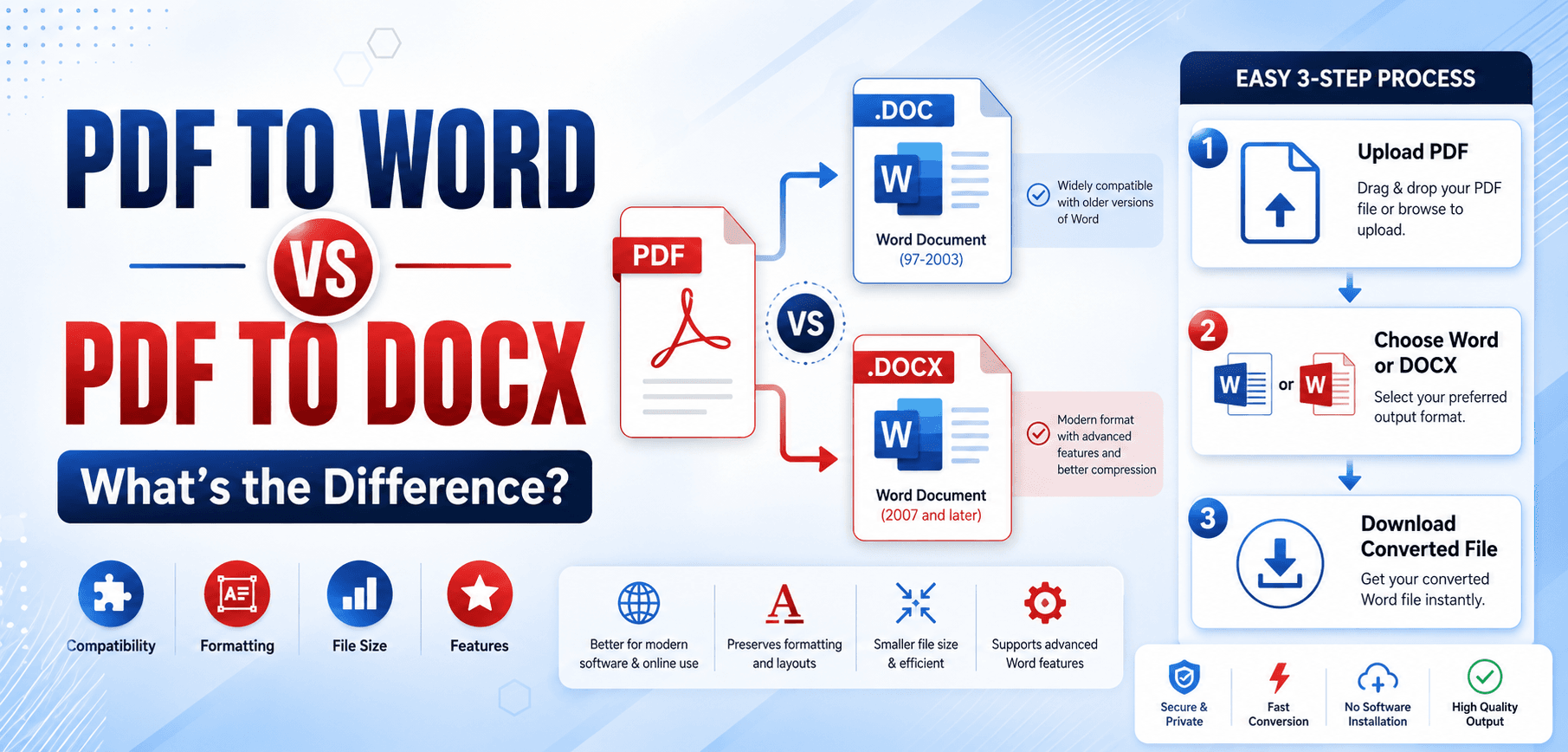
However, historically, "PDF to Word" often defaulted to outputting the older .doc file format. This format is widely compatible with ancient legacy systems and very old versions of Microsoft Office. The conversion process attempts to map the fixed visual elements of the PDF onto the flow-based layout of a DOC file, allowing for basic editable content creation. It is ideal for typical use cases where you just need to quickly grab text from an old file.
What Does PDF to DOCX Mean?
When you specifically choose to convert pdf to docx, you are selecting Microsoft's modern, XML-based standard.
The DOCX file structure is highly sophisticated. Because it is built on XML, it handles complex layouts, modern font embeddings, and high-resolution images much better than the legacy DOC format. The primary advantage of DOCX files is their unparalleled modern Office compatibility. Choosing DOCX ensures that the resulting file will be significantly smaller, highly secure, and perfectly optimized for collaboration in cloud environments like Microsoft 365 or OneDrive.
PDF to Word vs PDF to DOCX: Key Differences
To understand which pdf conversion tool output is best for you, let's look at the technical breakdown:
| Feature | PDF to Word (.DOC) | PDF to DOCX (.DOCX) |
|---|---|---|
| File Format | Binary structure | XML-based, zipped structure |
| Compatibility | Excellent for older systems (pre-2007) | Universal modern compatibility |
| File Size | Generally larger and bulkier | Up to 75% smaller due to ZIP compression |
| Editing Support | Basic text and image editing | Advanced layout and style editing |
| Formatting Accuracy | Moderate; complex layouts may break | High; better retention of tables and columns |
| Collaboration Features | Very limited | Native support for real-time co-authoring |
| Cloud Support | Poor integration with modern apps | Seamless integration with OneDrive/Google Drive |
| Modern Compatibility | Triggers "Compatibility Mode" warnings | Native, full-feature support in Office 2026 |
Benefits of PDF to Word
- Easy Editing: Instantly revise text, change dates, or fix typos without paying for premium PDF editors.
- Educational Use: Students can easily extract textbook passages or lecture notes into their own study guides.
- Business Documentation: Quickly adapt a competitor's public PDF brochure layout for internal brainstorming.
- Content Extraction: Pull long blocks of text to use in emails, presentations, or website CMS platforms.
- Report Updates: Update dates and figures on annual reports without starting from scratch.
Benefits of PDF to DOCX
- Better Formatting Retention: The XML structure excels at maintaining complex tables, columns, and graphics during conversion.
- Smaller File Sizes: DOCX files are inherently zipped, saving valuable hard drive and cloud storage space.
- Faster Document Sharing: Smaller files mean quicker email attachments and faster team uploads.
- Modern Collaboration Features: DOCX allows for real-time co-authoring, comments, and track changes in cloud environments.
- Improved Office Compatibility: You avoid the dreaded "Compatibility Mode" banner when opening the file in modern Word.
Which Format Should You Choose?
Your choice between a generic pdf to word conversion and a strict pdf to docx conversion depends entirely on your workflow.
Students
Recommendation: DOCX
Students need small file sizes for quick uploads to Learning Management Systems (LMS) and seamless integration with free tools like Google Docs.
Business Users
Recommendation: DOCX
Corporate environments rely on Microsoft 365 and real-time collaboration. DOCX ensures full feature compatibility and secure sharing.
Legal Professionals
Recommendation: DOCX
Legal documents often contain complex tables of authorities and strict formatting. The XML structure of DOCX preserves these intricate layouts better.
Content Writers
Recommendation: Word (DOC) or DOCX
If you are just extracting raw text to paste into WordPress or a blog editor, either format works perfectly fine.
Corporate Teams
Recommendation: DOCX
For teams utilizing SharePoint or cloud drives, the smaller file size and native co-authoring capabilities of DOCX are non-negotiable.
Common PDF Conversion Problems
Even with the best word file conversion tools, transforming a fixed PDF into a flow-based document can present challenges.
- Broken Formatting: Bullet points may misalign, and margins might shift.
- Missing Fonts: If the PDF uses a custom font you don't have installed, Word will substitute it, altering the look.
- Image Shifting: Background images or complex overlapping graphics may jump to the next page.
- OCR Errors: Converting a scanned document might result in spelling errors (e.g., the letter "l" mistaken for the number "1").
- Large File Sizes: Converting a massive image-heavy PDF might result in a sluggish Word file.
Solution: Always use a high-quality online pdf converter equipped with modern layout-retention algorithms and powerful OCR technology.
Tips for Accurate PDF Conversion
- Use High-Quality PDF Files: The better the source file, the better the conversion. Avoid low-resolution, heavily compressed PDFs.
- Apply OCR for Scanned Documents: If your PDF is a flat image (like a scanned contract), standard conversion won't work. You must use an OCR PDF Converter to extract the text.
- Review Formatting After Conversion: Always spend two minutes checking line breaks, page numbering, and table alignments before sending the final document.
- Use Trusted PDF Conversion Software: Avoid sketchy, ad-filled sites. Use a reputable tool that guarantees data privacy and accurate layout retention.
- Save Backups Before Editing: Always keep a copy of the original PDF just in case you need to reference the original formatting.
Best Tools to Convert PDF to Word or DOCX
- Online PDF Converters: Browser-based tools are the most popular, allowing you to convert files instantly without installing software.
- OCR PDF Converters: Specialized tools equipped with Optical Character Recognition to turn scanned images into editable text.
- Desktop PDF Software: Dedicated applications for professionals who need offline processing capabilities.
- Batch Conversion Tools: Software designed to convert hundreds of PDFs into DOCX files simultaneously.
- Cloud-Based PDF Tools: Integrations directly within Google Drive or OneDrive that allow right-click conversions.
Future of PDF Conversion in 2026
The technology behind word document converter tools is evolving rapidly. Looking ahead, the future of conversion relies heavily on artificial intelligence.
- AI-Powered PDF Conversion: Machine learning algorithms will predict how a document should look, virtually eliminating broken formatting.
- Improved OCR Technology: AI will read terrible handwriting and degraded scans with 99.9% accuracy.
- Better Layout Preservation: Complex elements like floating images, wrap-around text, and multi-page tables will convert seamlessly.
- Automated Document Editing: AI will allow you to edit PDF text natively in the browser without even needing to convert it to DOCX first.
- Cloud Collaboration Workflows: Conversion will happen invisibly in the background as you share files across enterprise networks.
Frequently Asked Questions (FAQs)
1. Is PDF to Word the same as PDF to DOCX?
Not exactly. 'PDF to Word' is a broad term that often results in the older .doc format, while 'PDF to DOCX' specifically targets Microsoft's modern, XML-based, highly compressed format.
2. Which conversion format is better?
In almost all cases in 2026, DOCX is vastly superior due to smaller file sizes, better layout retention, and modern cloud compatibility.
3. Does DOCX preserve formatting better?
Yes. The XML structure of DOCX is much better equipped to handle tables, columns, and embedded objects than the legacy DOC format.
4. Can scanned PDFs be converted to DOCX?
Yes, but only if the conversion tool utilizes OCR (Optical Character Recognition) to 'read' the image and extract the text.
5. Is DOCX smaller than DOC?
Significantly. DOCX files are essentially ZIP archives of XML data, making them up to 75% smaller than their binary DOC counterparts.
6. Which format should businesses use?
Businesses should exclusively use DOCX to ensure full compatibility with modern enterprise tools like Microsoft 365, Teams, and SharePoint.
7. Are online PDF converters safe?
Yes, provided you use a reputable service. Look for tools that utilize SSL encryption and promise automatic file deletion after the conversion process is complete.
Conclusion
Understanding the difference between pdf to word and pdf to docx is crucial for maintaining an efficient, modern digital workflow. While both processes unlock the content trapped inside a static PDF, the modern DOCX format is the undisputed champion for 2026.
By specifically opting for DOCX, you ensure better formatting retention, significantly smaller file sizes, and seamless compatibility with today's collaborative cloud environments. Whether you are a student editing an assignment or a lawyer revising a contract, choosing the right output format saves time and prevents formatting headaches.
Ready to unlock your documents?
Start using a reliable, highly accurate PDF Converter Tool today to transform your rigid PDFs into perfectly editable Word files in seconds!