
How to Print Flipkart Shipping Labels Correctly for Faster Dispatch
Introduction
In the highly competitive world of eCommerce, dispatch speed is everything. For sellers on Flipkart, the difference between a successful, early delivery and a frustrating, delayed order often comes down to one simple factor: the shipping label. While it might seem like a trivial piece of paper, incorrect label printing is the number one cause of dispatch delays and Return to Origin (RTO) nightmares.
Sellers routinely make mistakes like stretching barcodes, cropping out essential routing codes, or printing faded labels that logistics partners cannot scan. When a label fails to scan at pickup, the courier rejects the package, causing an immediate dispatch delay and ultimately damaging your seller rating.
In this guide, we will walk you through exactly how to print your Flipkart shipping labels correctly to ensure seamless, lightning-fast order fulfillment.
What Are Flipkart Shipping Labels?
A Flipkart shipping label is the critical physical connection between your digital order and the logistics system. It tells the courier—whether it is Ekart Logistics, Delhivery, or Xpressbees—exactly where the package needs to go and how it should be routed through various transit hubs.
Most importantly, the label contains a machine-readable barcode. This barcode acts as the digital key that logs the package into the logistics network. Without a clean, scannable barcode, your order practically does not exist in the courier's tracking system.
Information Included on a Flipkart Shipping Label
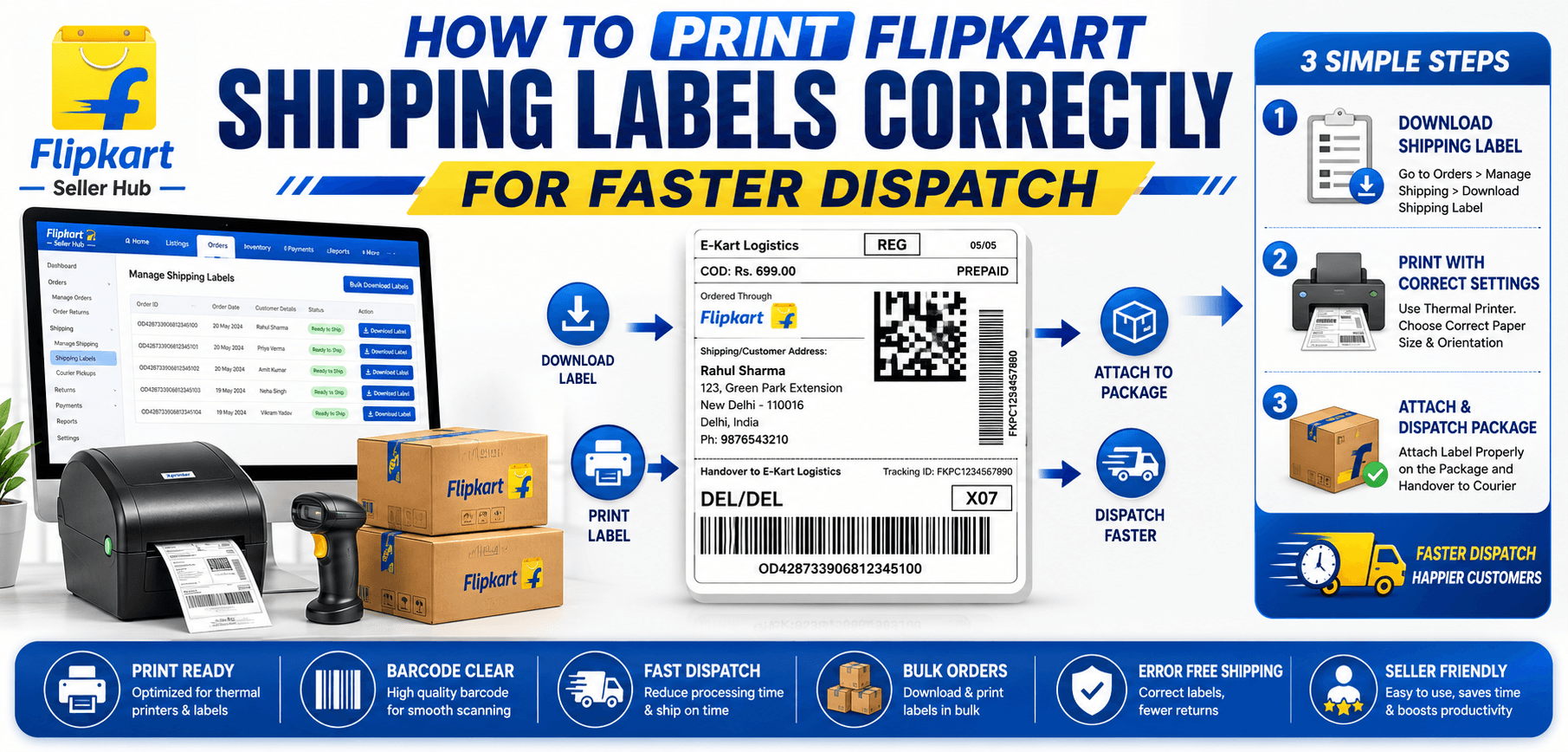
Before printing, it is crucial to understand what you are printing. A standard Flipkart shipping label includes:
Order ID
Flipkart's internal alphanumeric tracking number used by you and customer support.
Tracking Number (AWB)
The Air Waybill (AWB) number specific to the courier handling the package.
Customer Address
The final delivery destination, complete with PIN code.
Seller Details
Your registered pickup or return address.
Courier Information
The logo and specific routing codes of the logistics partner (e.g., E-Kart).
Barcode
The scannable visual representation of the AWB.
Routing Information
Shortcodes or zone indicators used by sorting facility workers to manually toss packages into the correct geographic bins.
Why Correct Label Printing Matters
Faster Courier Acceptance
A scannable barcode means the pickup boy can process 50 packages in two minutes rather than manually entering AWB numbers.
Accurate Tracking
As soon as it scans, the customer receives an "Out for Shipping" notification, boosting their confidence.
Reduced Return-to-Origin (RTO)
Legible customer addresses and correct routing codes prevent packages from getting lost in transit hubs and eventually returned to you.
Better Customer Experience
Timely delivery directly correlates with positive seller reviews.
Faster Warehouse Operations
Printing labels correctly the first time eliminates the need to reprint and repackage boxes.
How to Download Flipkart Shipping Labels
- Step 1: Login to Flipkart Seller Hub. Access your main dashboard.
- Step 2: Navigate to Orders Section. Click on 'Active Orders' to view your daily queue.
- Step 3: Select Ready-to-Ship Orders. Process the pending orders to generate the shipping documents.
- Step 4: Download Shipping Labels. Select your processed orders and click 'Download Labels' to save the PDF.
- Step 5: Verify Label Details Before Printing. Quickly skim the document to ensure no pages failed to generate.
Best Printer Settings for Flipkart Labels
The default settings on your printer might ruin your labels. Here is how to set them up:
A4 Printing
If using a standard laser or inkjet printer, ensure you are not shrinking the labels. Many sellers print 4 labels on a single A4 sticker sheet. Make sure your layout settings are aligned to prevent text from falling off the edges.
Thermal Printer Printing
Thermal printers are the gold standard for eCommerce. Set the paper size exactly to 4x6 inches (100x150mm).
Print at Actual Size
Never use "Fit to Page" or "Scale to Fit" in your PDF viewer. This alters the barcode dimensions, making it unreadable by courier scanners. Always choose "Actual Size" or 100% scale.
Maintain Barcode Clarity
The contrast must be high. If your barcode looks gray or has faded streaks, increase the print density in your printer preferences.
Use High Print Quality Settings
Switch from "Draft" mode to "Standard" or "High" quality to ensure sharp text.
Recommended Label Printing Workflow
- Download labels in bulk to save time.
- Verify order details against your physical inventory.
- Crop labels if required using an automated tool to fit thermal printers.
- Print test page to check alignment and barcode clarity before bulk printing.
- Print batch labels continuously.
- Attach labels securely to the flat surface of the box, ensuring no tape covers the barcode.
- Verify barcode scanning with your own mobile phone or a cheap USB scanner.
Common Flipkart Label Printing Mistakes
Cropped Barcodes
Solution: Ensure your document margins are set correctly so the barcode is completely visible.
Incorrect Scaling
Solution: Always print at 100% Actual Size. Do not let the PDF reader shrink the document to fit.
Blurry Printing
Solution: Clean your thermal printer head with rubbing alcohol, or change your ink cartridge if using a standard printer.
Missing Sections
Solution: Use professional PDF cropping tools rather than taking messy screenshots.
Wrong Orientation
Solution: Check the preview window to ensure portrait/landscape settings match the paper.
Poor Paper Quality
Solution: Use matte, smudge-proof sticker paper. Glossy paper reflects light and prevents scanners from reading the barcode.
Barcode Scanning Problems and Solutions
- Faded printing: Increase printer darkness or heat density settings.
- Ink issues: Switch to a direct thermal printer to eliminate ink problems entirely.
- Damaged labels: Avoid wrapping clear packing tape over the barcode, as the reflection blocks the laser scanner.
- Improper placement: Never paste a label across the seam or corner of a box. Keep it entirely on a flat surface.
- Low-resolution printing: Ensure your PDF viewer is rendering vectors, not low-res raster images.
Thermal Printer vs A4 Printer for Flipkart Labels
| Feature | Thermal Printer (4x6) | A4 Printer (Ink/Laser) |
|---|---|---|
| Printing Speed | Extremely Fast (1 label/sec) | Slower |
| Label Quality | High contrast, smudge-proof | Prone to smudging if wet |
| Cost Per Label | Very Low (No ink needed) | High (Requires toner/ink) |
| Setup Cost | Moderate ($100-$200) | Low to Moderate |
| Bulk Handling | Excellent | Poor (Cutting required) |
If you are processing more than 20 orders a day, investing in a thermal printer is absolutely essential for warehouse efficiency.
How Automatic Label Cropping Improves Efficiency
Flipkart provides shipping labels in standard A4 sizes. If you want to use a thermal printer, you must crop the label out of the A4 page. Doing this manually for 100 orders takes hours.
By utilizing a Bulk Label Processing tool like AllPDFTools, you can automate this completely. The software instantly detects the shipping label boundaries and outputs a perfect 4x6 PDF ready for printing. This results in faster printing, better barcode visibility, reduced manual work, and ultimately, significantly improved dispatch speed.
Flipkart Dispatch Workflow Optimization
Printing correctly is just step one. To optimize your dispatch workflow, implement Bulk Label Management to process orders in batches. Ensure strict Shipping Document Organization so invoices and labels never get mixed up. Maintain strong Packaging Coordination by matching SKU codes on labels to physical products. This guarantees peak warehouse productivity and lightning-fast courier handover.
Best Practices for Faster Dispatch
- Print labels immediately after order confirmation to lock in the dispatch timeline.
- Verify customer information against the invoice to prevent shipping errors.
- Use proper printer settings (100% scale, high density).
- Check barcode readability manually before sticking.
- Organize orders by courier (Ekart pile, Delhivery pile) to speed up pickup times.
- Use automated label processing tools to save manual cropping time.
- Archive shipping documents digitally for easy reference during returns.
Common Dispatch Delays Caused by Label Errors
- Courier Rejections: The pickup agent refuses the package because the barcode won't scan.
- Barcode Scan Failures: Faded ink causes sorting facilities to put the box in a manual review pile, adding days to transit.
- Wrong Address Printing: Cropping off the bottom half of the label removes the customer's PIN code.
- Missing Tracking Numbers: Scaling issues push the AWB number off the edge of the sticker.
- Packaging Mistakes: Wet labels on non-waterproof paper smudge immediately in the rain.
Essential Tools for Flipkart Sellers
- Flipkart Label Cropper / PDF Crop Tool: Instantly format A4 labels into 4x6 dimensions.
- PDF Splitter: Separate massive bulk files into manageable chunks for printing.
- PDF Merger: Combine individual order PDFs into a single batch file.
- Bulk PDF Processor: Optimize file sizes for rapid downloading.
- Shipping Document Organizer: Keep all manifests and invoices perfectly archived.
Future of Shipping Automation in 2026
The future of eCommerce in 2026 relies on AI-powered shipping workflows and smart warehouse systems. Automated label processing tools will become mandatory as marketplaces enforce stricter dispatch SLAs. By optimizing your barcode printing and investing in seller productivity tools now, you future-proof your fulfillment operations against rising competition.
Frequently Asked Questions (FAQs)
1. How do I print Flipkart shipping labels?
Download the label PDF from the Seller Hub, open it in a reliable PDF reader, set the scale to 100% (Actual Size), and print using high-density settings.
2. What printer is best for Flipkart labels?
A direct thermal printer (like a TSC or Zebra 4x6 printer) is the best choice for fast, smudge-proof, and ink-free printing.
3. Why is my Flipkart barcode not scanning?
It is likely due to 'Fit to Page' scaling distorting the barcode lines, faded ink, or shiny packing tape reflecting light back into the scanner.
4. Can I print multiple labels at once?
Yes. Use Flipkart's bulk processing feature to download a combined PDF, then use an automated cropping tool to format them all simultaneously.
5. What paper size should I use?
If using a thermal printer, use 4x6 inch (100x150mm) adhesive labels. If using a standard printer, use an A4 sticker sheet.
6. How can I avoid dispatch delays?
Ensure your barcodes are 100% scannable, sort your packages by courier partner, and have everything packed before the pickup agent arrives.
7. Are thermal printers better for Flipkart sellers?
Absolutely. They are faster, require zero ink cartridges, and produce professional-grade, waterproof labels.
8. What is the best Flipkart label cropping tool?
AllPDFTools provides an incredibly efficient, privacy-focused PDF crop tool that processes your shipping labels directly in your browser without uploading data to a server.
Conclusion
Printing Flipkart shipping labels correctly is the backbone of a successful dispatch operation. By ensuring proper barcode visibility, using the right printer settings, and maintaining high shipping accuracy, you eliminate courier rejections and dramatically reduce your dispatch time.
Don't let manual cropping and bad printing ruin your seller score. Utilize powerful automation tools like AllPDFTools to process your labels perfectly, every single time. Streamline your workflow today and watch your warehouse productivity soar.
Ready to Automate Your Flipkart Labels?
Stop fighting with manual screenshots and PDF adjustments. Try the AllPDFTools Label Cropper and format hundreds of labels instantly.