10 Common PDF Problems and How to Fix Them
In 2026, the Portable Document Format (PDF) remains the most widely used document format across the globe. From business contracts and legal agreements to university assignments and freelance invoices, PDFs are the gold standard for preserving document formatting regardless of the device or operating system being used.
However, despite their universality, PDF issues can occasionally disrupt productivity and document sharing. When a critical file refuses to open minutes before a deadline, or an email server rejects an attachment because the file is too large, the frustration is real.
In this comprehensive guide, we will introduce the most common PDF problems users face every day and provide simple, actionable troubleshooting steps to fix PDF issues fast.
Why PDF Problems Occur
Before jumping into the fixes, it helps to understand why PDF file problems happen in the first place. The most frequent culprits include:
- Large file sizes: Usually caused by high-resolution images or embedded fonts that balloon the document size.
- Software compatibility issues: Attempting to open newer PDF versions with outdated reader software.
- Corrupted files: Often the result of interrupted downloads, sudden power loss during saving, or improper file transfers.
- Security restrictions: Password protection or digital rights management (DRM) that lock down editing, printing, or viewing.
- Formatting inconsistencies: Arising during the conversion process from Word, Excel, or PowerPoint to PDF.
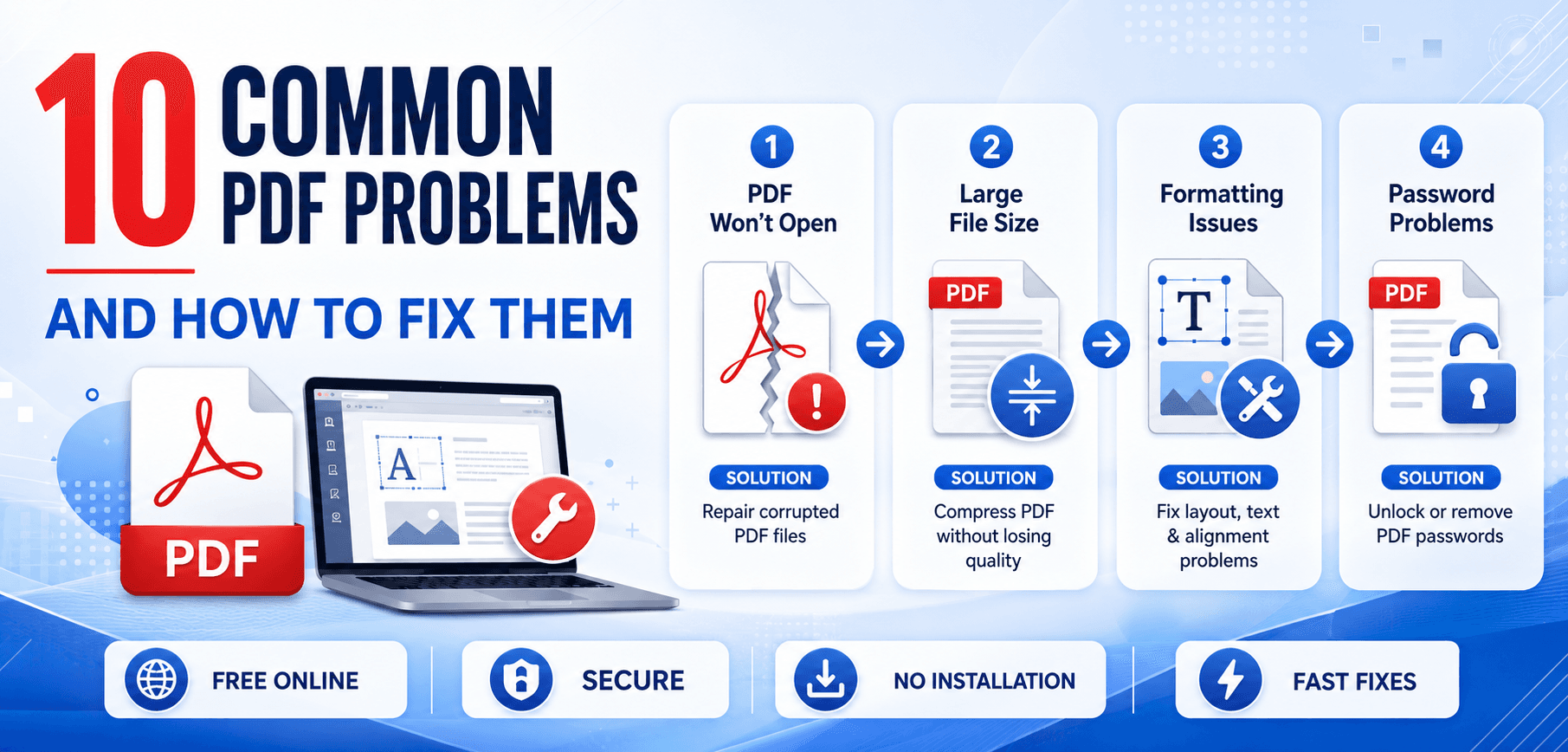
10 Common PDF Problems and How to Fix Them
1. PDF File Is Too Large
Causes: The most common reason for bloated PDF files is the inclusion of uncompressed, high-resolution images, complex vector graphics, or fully embedded custom fonts. When documents are scanned at excessively high DPI, file sizes can also skyrocket.
Fix: You don't need to sacrifice visual fidelity to achieve a manageable file size. Using a dedicated PDF compressor, you can automatically optimize background images and strip unnecessary metadata to reduce the file footprint significantly.
2. Unable to Open PDF Files
Causes: If your PDF is not opening, it could be due to a corrupted download, an outdated PDF reader, or your operating system associating the file with the wrong application.
Fix: Right-click the file and select "Open With," then choose your web browser (Chrome, Edge, Safari) to see if it renders correctly. Also, ensure your preferred PDF reader is updated to the latest version.
3. Corrupted PDF Documents
Causes: Error messages like "The file is damaged and could not be repaired" indicate corruption, often from interrupted transfers or hard drive issues.
Fix: Re-download the file from the original source. If the file is still broken, utilize a PDF Repair Tool to reconstruct damaged file headers and broken cross-reference tables.
4. PDF Not Uploading Online
Causes: Many portals enforce strict upload limits (often 2MB to 10MB). Aggressive browser caching can also interfere.
Fix: If your file is too large, use a PDF Splitter to divide the document into smaller parts, or clear your browser cache and try an Incognito window.
5. Images Appear Blurry in PDF
Causes: Heavy compression during export or low-resolution source images.
Fix: Avoid choosing "Minimum Size" when creating PDFs from Word or Photoshop. Use high-quality publishing settings and intelligent optimization tools to balance clarity with size.
6. Text Formatting Changes After Conversion
Causes: Missing font compatibility on the reader's device.
Fix: Ensure the "Embed Fonts" option is checked when generating the PDF. Alternatively, "Print to PDF" rather than "Save As" to flatten the document.
7. Password-Protected PDF Access Problems
Causes: Forgotten passwords or restrictive permission settings set by the author.
Fix: Use a PDF unlocker tool to remove permission passwords (for editing/printing). For "file open" passwords, you must have the original key.
8. PDF Won't Print Correctly
Causes: Outdated printer drivers or missing graphical rendering instructions.
Fix: Select "Print as Image" in your print dialog box to bypass printer font processing, and ensure "Fit to Page" is checked.
9. Unable to Edit PDF Content
Causes: PDFs are designed to be uneditable end-products.
Fix: Use a PDF Converter to transform the document into a Word (.docx) file. Make your edits, then save back as a PDF.
10. Slow PDF Loading Performance
Causes: High-resolution images, videos, or excessive vector paths overloading the processor.
Fix: Flatten the PDF to merge all elements into a single layer, or run it through an optimizer to simplify vector data.
Quick Troubleshooting Checklist
If you are experiencing PDF file problems, run through this quick checklist before seeking advanced solutions:
Best Practices to Prevent PDF Problems
- Use reliable PDF tools: Rely on trusted, professional platforms for conversions and compression.
- Compress files regularly: Make it a habit to optimize PDFs before sending them.
- Keep software updated: Regularly patch your operating system and document readers.
- Backup important documents: Keep original source files stored securely.
- Optimize PDFs before sharing: Double-check formatting and file size before emailing clients.
Frequently Asked Questions (FAQs)
Why is my PDF file so large?
PDFs usually become excessively large when they contain high-resolution uncompressed images, embedded multimedia, or complex custom fonts. Scanning documents at a very high DPI also results in massive file sizes.
Can corrupted PDF files be repaired?
Yes, in many cases. Using dedicated PDF repair software can rebuild broken file headers and recover the readable data, though heavily corrupted files might not be fully recoverable.
How do I reduce PDF size without losing quality?
You can use an online PDF compressor tool. These tools intelligently downsample background images and remove invisible metadata while keeping text crisp and legible.
Why won't my PDF open?
This is often caused by trying to open the file in an outdated reader, having a corrupted file download, or the document being encrypted with an unknown password.
Are online PDF tools safe to use?
Yes, reputable online PDF tools use secure, encrypted connections (SSL) and automatically delete your files from their servers shortly after processing to ensure your data privacy.
Conclusion
Encountering PDF editing issues, files that won't open, or formatting errors can bring your workflow to a grinding halt. However, by understanding the root causes behind these 10 common PDF problems, you can quickly implement the right fixes.
Whether it's compressing a bloated file, bypassing a printer error, or recovering a corrupted document, the key is having the right utilities at your disposal. Don't let document issues slow you down!
Take Control of Your PDF Workflows
Take control of your workflow today by using our reliable suite of online PDF tools to compress, merge, split, and convert your files effortlessly!