The Ultimate Guide to PDF Editing, Redaction & Annotation
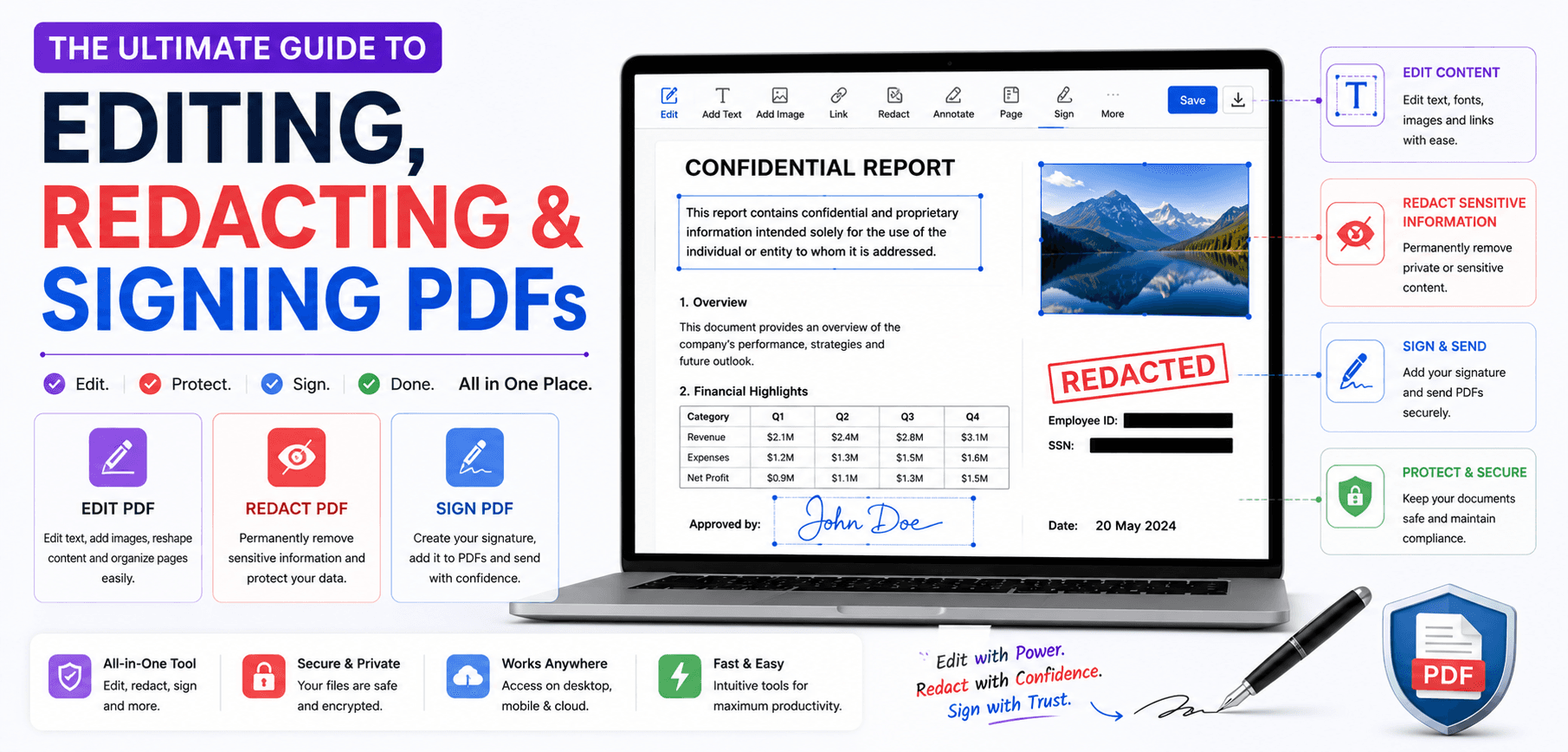
Over 2.5 trillion PDFs are created every year. From legal contracts and medical records to academic papers and corporate invoices, the PDF is the digital equivalent of paper. But unlike paper, a PDF can be modified after it is "printed"—if you have the right tools and understand the underlying architecture of the format.
Many users mistakenly believe that "editing" a PDF simply means typing over text. In reality, modifying a PDF encompasses a wide spectrum of technical operations ranging from non-destructive annotation overlays to aggressive, irreversible data redaction. In this ultimate guide, we will explore the three primary pillars of PDF modification: Annotation, Redaction, and Base-Layer Editing.
1. Base-Layer Editing vs Annotation
To master PDF editing, you must first understand the concept of layers. The PDF specification allows for a primary "Base Layer" (the original document content) and subsequent "Annotation Layers" (objects placed on top of the document).
Base-Layer Editing
This involves altering the original text or images embedded when the PDF was created. It is technically complex because it requires matching embedded fonts and shifting the X/Y coordinates of surrounding vector paths. It leaves forensic traces in the file's metadata.
Annotation (Markup)
This is a non-destructive process. You are adding new objects—like sticky notes, highlights, drawn lines, or typed text boxes—into an invisible layer on top of the base document. The original data remains completely untouched underneath.
2. The Danger of "Fake" Redaction
Perhaps the most dangerous misunderstanding in PDF editing involves redaction. Every year, governments, law firms, and corporations suffer catastrophic data leaks because they attempt to redact sensitive information using standard annotation tools.
Drawing a black box over a Social Security Number is NOT redaction.
If you draw a black rectangle over text using a standard editor, you are merely adding an annotation layer. Anyone who downloads that PDF can simply open it, select the black box, hit the "Delete" key, and reveal the sensitive text underneath. Furthermore, the text remains fully searchable by Google and readable by screen readers.
True Redaction
A true redaction tool, like the SmartPDFs Redactor, actually parses the binary stream of the document and permanently deletes the underlying vector and character data from the file before painting a black box over the coordinate area. Once truly redacted, the data is gone forever.
3. The Flattening Process
When you finish adding annotations (like a digital signature, filled form fields, or typed notes), you must decide how to save the file.
If you simply "Save" the document, those annotations remain active. The next person to open the file can modify your form data or move your signature. To prevent this, you must Flatten the PDF.
Flattening is a mathematical process that merges the annotation layer directly into the Base Layer. It converts interactive form fields, sticky notes, and signatures into static vector paths. While a determined hacker with an advanced Base-Layer editor could theoretically still modify it, flattening stops 99.9% of casual tampering and ensures your document looks identical on every device (especially mobile phones, which often fail to render active annotation layers correctly).
4. Comprehensive Web Editing Workflow
SmartPDFs Plus offers a unified, WebAssembly-powered editing environment that handles all these workflows securely within your browser:
- 1
Secure Loading
Open the All-in-One Editor. The PDF is parsed directly into your local RAM. No data leaves your machine.
- 2
Annotate and Sign
Use the toolbar to fill out forms, draw signatures, highlight important clauses, or type new paragraphs of text.
- 3
Sanitize (Optional)
If the document contains metadata (author names, software versions) you wish to hide, use the sanitization tool to strip the file headers.
- 4
Flatten and Export
Click Download. The engine will automatically flatten your annotations, embed any required fonts, and generate a highly compatible, secure output file.
Frequently Asked Questions
Can I edit a PDF that was created from a scanner?
Not directly. A scanned PDF is essentially a photograph of a piece of paper wrapped in a PDF container. To edit it, you must first process it through an OCR (Optical Character Recognition) engine.
Why does my text look different when I type in a PDF?
If you type text using a font that is not installed on your system or fully embedded in the document, the editor will substitute it with a default font (like Arial or Times New Roman), causing a visual mismatch.
How do I know if a document has been truly redacted?
Open the document in a standard reader and try to select the text underneath the black box with your cursor. Then, try searching for the hidden word using Ctrl+F. Finally, try copy-pasting the entire page into Notepad. If the text appears, it was not properly redacted.
Ready to Take Control of Your Documents?
Annotate, redact, and flatten your PDFs securely in your browser without expensive software subscriptions.