The Ultimate Guide to Image Conversion: JPG, PNG, WebP & PDF
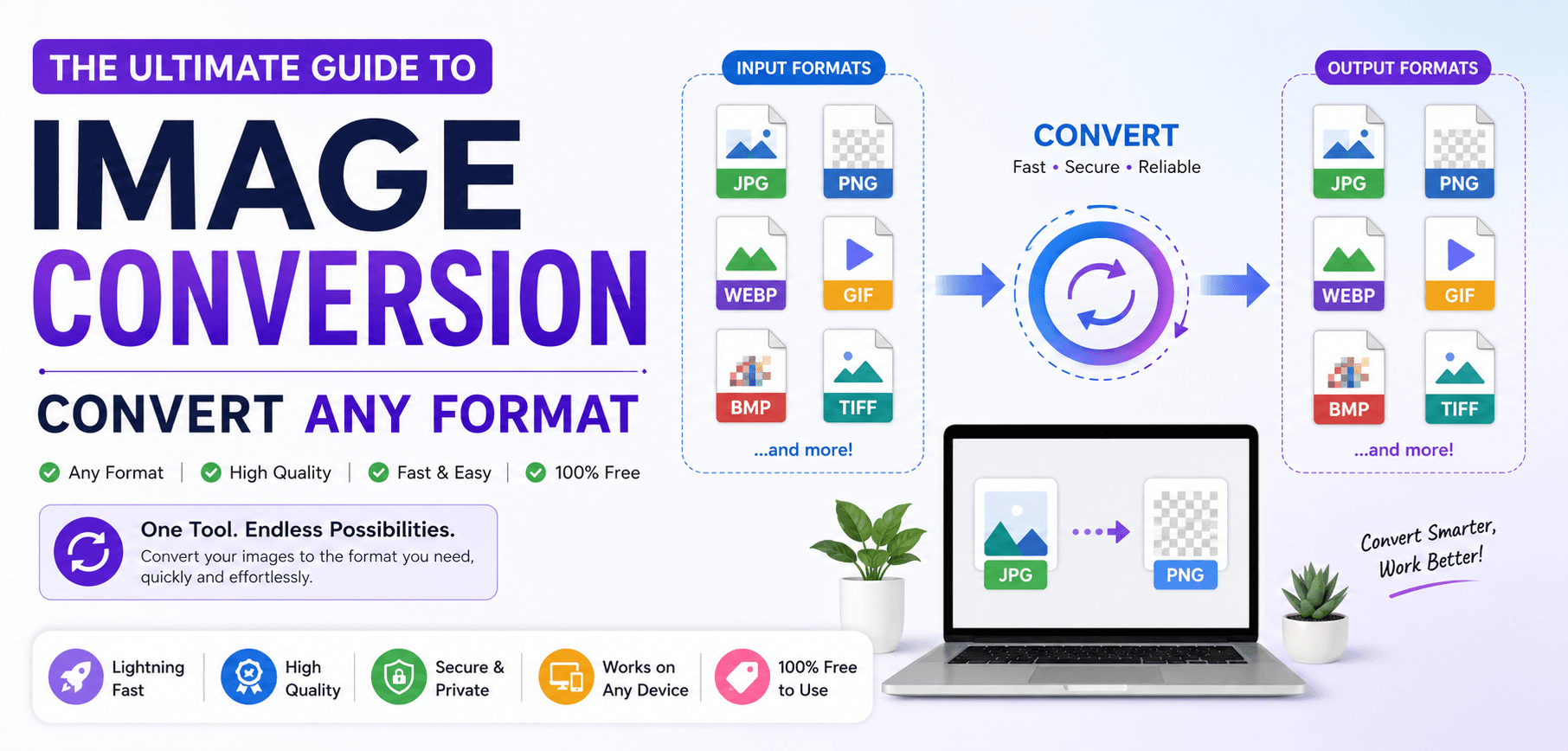
In the digital age, understanding image formats is no longer just for graphic designers. Whether you are uploading a photograph to a government portal that strict demands a "PDF under 2MB", building a lightning-fast Next.js web application, or archiving family photos, choosing the right file format is critical.
Not all image formats are created equal. Some permanently destroy color data to save space (Lossy), some preserve every single pixel perfectly (Lossless), and some (like PDF) aren't even true image formats at all, but rather complex containers. In this ultimate guide, we will dissect the architecture of JPG, PNG, WebP, and PDF, and show you how to convert between them flawlessly.
1. Raster Formats: JPG vs PNG vs WebP
Before you can convert an image effectively, you must understand the underlying algorithms driving the format. JPG, PNG, and WebP are all Raster formats. This means they are constructed using a grid of thousands of tiny colored squares called pixels.
JPEG (JPG)
The Lossy Standard. Designed for complex photographs. To reduce file size, the JPG algorithm mathematically averages out neighboring colors and deletes data. Every time you save a JPG, it loses quality permanently (Generation Loss). It does not support transparency.
PNG
The Lossless Standard. Designed for graphics, logos, and screenshots containing text. PNG uses LZW compression to shrink the file without deleting a single pixel of color data. It fully supports an alpha channel (transparency).
WebP
The Modern Web. Created by Google. WebP can operate in both lossy AND lossless modes. It supports transparency and animation. It generally produces files 25-34% smaller than equivalent JPGs and PNGs, making it the king of web performance.
2. The Golden Rule of Conversion
You cannot create data out of thin air.
If you have a heavily compressed, pixelated JPG file (say, 50kb), converting it to a PNG will result in a much larger file (say, 500kb), but the image will still look terrible. The PNG algorithm perfectly preserves the blurry, blocky artifacts created by the JPG.
Workflow Best Practice: Always store your master files in a lossless format (like PNG, TIFF, or PSD). When you need to upload to a website or send an email, export a copy of that master file to a lossy format (JPG/WebP) to save space.
3. The PDF Wrapper Explained
A massive source of confusion is the relationship between Images and PDFs.
A PDF (Portable Document Format) is not an image format like a JPG. A PDF is a container. It can hold text, vector graphics, fonts, and yes, raster images. When you use a tool to Convert JPG to PDF, the software is not transforming the pixels into a new image format. Instead, it creates a blank PDF page and embeds your JPG image onto that page, much like pasting a photo onto a physical piece of paper.
This is incredibly useful because a PDF can hold hundreds of images inside a single file, ensuring they are always viewed in the correct order, regardless of the device the recipient is using.
4. Automated Batch Conversion Workflow
Converting 50 images into a single PDF document manually using desktop software is tedious. SmartPDFs Plus provides a secure, WebAssembly-powered browser tool to automate this instantly:
- 1
Upload Your Images
Navigate to our JPG to PDF tool. You can drag and drop JPG, PNG, WebP, or HEIC files simultaneously.
- 2
Reorder visually
Our interface allows you to drag the image thumbnails to sequence them exactly as they should appear in the final document.
- 3
Set Page Margins & Orientation
Choose whether you want the images to stretch to the edges of the PDF page, or if you want a clean white margin. The tool can also auto-detect Portrait vs Landscape.
- 4
Generate PDF
Click generate. The WebAssembly engine compiles the PDF wrapper locally in your browser memory (ensuring absolute privacy) and downloads the final file.
Frequently Asked Questions
Does converting a JPG to PDF reduce its quality?
No. Assuming the PDF engine is configured correctly, the JPG is embedded into the PDF container exactly as-is, with zero additional compression or quality loss.
How do I extract an image out of a PDF?
You can use a PDF to Image converter. The software will locate the embedded image objects within the PDF architecture and save them back to your hard drive as raw JPGs or PNGs.
What is EXIF data and is it preserved?
EXIF data contains hidden metadata captured by your camera (like GPS location, date, and camera model). Depending on your conversion settings, EXIF data is often stripped when generating a PDF to enhance privacy and reduce file size.
Ready to Convert?
Compile dozens of images into a single, professional PDF document securely in your browser.