The Complete Guide to PDF to Word Conversion
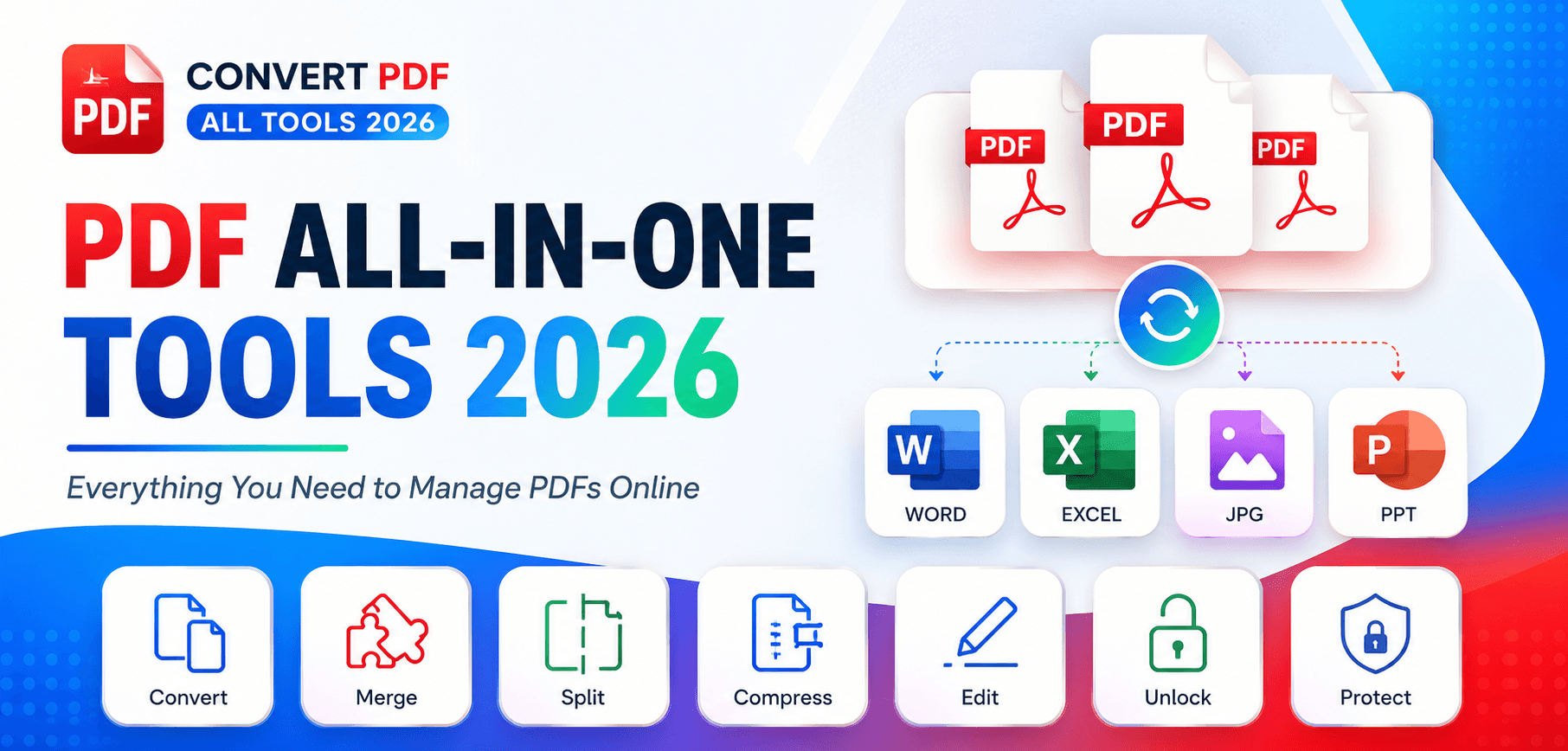
PDFs are the undisputed king of document sharing. They look identical on every device, preserve strict formatting, and are inherently difficult to edit. But what happens when you receive a 50-page contract in PDF format and you desperately need to make revisions? Re-typing it is out of the question. You need a robust PDF to Word converter. In this guide, we explore the intricate technology behind PDF conversion, how Optical Character Recognition (OCR) bridges the gap between images and text, and how to guarantee your Word documents retain their original layout.
1. Understanding the PDF Structure
To understand why converting a PDF to Word is mathematically complex, you must understand how a PDF is built. A Microsoft Word (`.docx`) file is fundamentally a flow-based document. Text automatically wraps to the next line, pages are generated dynamically based on content length, and tables expand to fit their data.
A PDF, on the other hand, is a strict coordinate-based layout. It doesn't know what a "paragraph" is. It simply knows: "Place the letter 'A' at X:150, Y:300 using Helvetica 12pt." When you convert a PDF to Word, our advanced PDF to Word engine must heuristically analyze the distance between letters to guess where words and paragraphs exist, and then reconstruct a flow-based layout from scratch.
2. Native PDFs vs. Scanned PDFs
Your conversion strategy depends entirely on the origin of your PDF. There are two primary types of PDF files in the wild:
Native (Digital) PDFs
These are created directly from a digital source (like exporting from Word, Google Docs, or InDesign). They contain actual text characters embedded in the file. You can highlight, copy, and search the text easily. These convert to Word with near 100% accuracy.
Scanned PDFs
These are created by physical hardware scanners. To the computer, a scanned PDF is nothing more than a giant photograph of a piece of paper. There are no letters—only pixels. Standard converters will output an empty Word document with a giant image pasted inside.
3. The Magic of OCR (Optical Character Recognition)
When dealing with scanned PDFs, you must use a tool equipped with OCR. Our OCR Tool utilizes artificial intelligence to scan the image pixels, recognize the shapes of letters, and generate actual, editable text.
Modern OCR doesn't just read English text. It supports over 100 languages, recognizes complex mathematical symbols, and even detects formatting elements like bold, italic, and underline natively from the image scan.
4. Preserving Complex Formatting
Extracting text is easy; maintaining the visual layout is the true challenge. High-end converters analyze the document globally. If it detects a grid of lines surrounding text, it builds a native Microsoft Word Table. If it detects text split vertically down the middle of the page, it configures Word's Multi-Column layout rather than simply using tabs and spaces.
Best Practice: Always review converted documents with "Show Formatting Marks" enabled in Microsoft Word (the ¶ icon). This will reveal whether the converter correctly used native styles (Headers, Paragraphs) or if it relied heavily on hard returns and spaces.
Frequently Asked Questions
Will the converted Word file look exactly like the PDF?
In most cases, yes. Our engine uses advanced layout reconstruction to preserve fonts, tables, and exact spatial positioning. However, extremely intricate designs created in software like Adobe Illustrator might require minor manual padding adjustments in Word.
Is my confidential data safe during conversion?
Absolutely. We employ TLS encryption for all file transfers. Your files are processed entirely in memory and are permanently wiped from our servers immediately upon conversion completion.
Can I convert a password-protected PDF to Word?
Yes, but you must know the password. You can use our Unlock PDF tool to remove the encryption first, and then run it through the Word converter.
Does it support Mac (.pages) or just Windows (.docx)?
The output is a standard Microsoft .docx file. This format is universally supported by Apple Pages, Google Docs, LibreOffice, and Microsoft Word on both Mac and Windows.
Ready to edit your PDFs?
Transform locked, static PDF files into beautifully formatted, 100% editable Microsoft Word documents instantly.