How to Rearrange, Rotate & Delete PDF Pages Online
Organize 7 min readLast Updated: May 30, 2026By SmartPDFs Plus Team
Introduction
We have all dealt with messy PDF files. Whether it is a scanned document where every other page is upside down, a massive report with blank pages in the middle, or a presentation where the slides are simply out of order, disorganized PDFs look unprofessional and are difficult to read.
Fortunately, fixing these issues doesn't require expensive software like Adobe Acrobat. With the right tools, you can easily organize your PDF directly in your web browser. In this comprehensive guide, we will walk you through exactly how to rearrange, rotate, and delete pages from any PDF document quickly, securely, and for free.
Key Takeaways
- How to use an intuitive drag-and-drop interface to reorder pages.
- Quickly identify and fix incorrectly scanned or sideways pages.
- Learn keyboard shortcuts to massively speed up your workflow.
Common Use Cases for Organizing PDFs
Organizing a PDF is one of the most frequent document tasks. Here is why most professionals find themselves needing a good PDF organizer tool.
Fixing Scanned Files
Office scanners often misfeed. You end up with documents where pages are scanned upside down or in landscape mode instead of portrait. A quick rotation fixes this instantly.
Removing Blank Pages
When saving a Word document to PDF, an accidental page break can result in empty white pages. Removing them makes the file smaller and look much more professional.
Reordering Chapters
If you're compiling a portfolio, thesis, or report, you might decide a specific section belongs earlier in the document. Drag and drop lets you visually sort chapters.
Extracting Specific Pages
If you have a 100-page manual but only need pages 12-15 to send to a client, you can simply delete the rest, or use our dedicated extract PDF tool.
How to Use the Organize PDF Tool
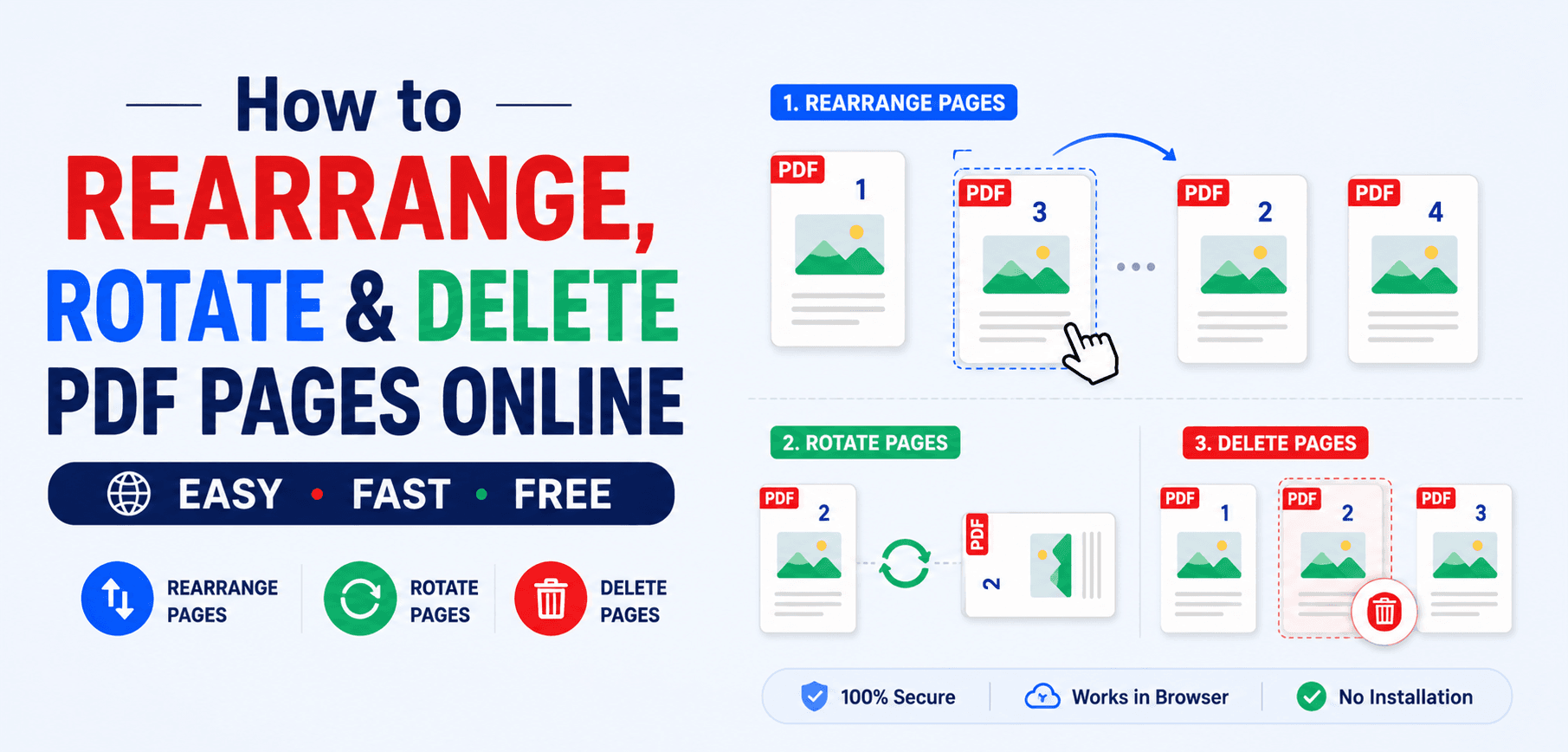
Our Organize PDF tool provides a "light table" view of your document. It lays out every page as a visual thumbnail, making it incredibly easy to spot mistakes and rearrange the flow.
Open the Tool
Navigate to our dedicated Organize PDF page. This works on Windows, Mac, iOS, and Android.
Upload Your Document
Click to select your file, or drag it into the browser window. Within seconds, you will see a grid of thumbnails representing every page in your document.
Rearrange via Drag-and-Drop
Click and hold on any page thumbnail. Drag it to a new position in the grid and drop it. The surrounding pages will automatically shift to accommodate it. On mobile devices, tap and hold for a split second until the page lifts, then drag.
Rotate Pages
Hover over a page to reveal the action menu. Click the rotate icon (↻) to turn the page 90 degrees clockwise. Click it twice for 180 degrees.
Delete Unwanted Pages
Hover over a page and click the trash icon (🗑) to mark it for deletion. The page will dim and be excluded from the final document. If you make a mistake, simply click the "Restore" button that appears on the dimmed thumbnail.
Apply Changes and Download
Once the grid looks exactly how you want your final document to appear, click the main "Apply Changes" or "Organize PDF" button. Your browser will generate the new PDF instantly for you to download.
Advanced Batch Actions
If you are dealing with a 50-page document, clicking rotate on every single page is tedious. That is why we built in advanced batch actions to save you time.
Rotate All
Rotate every single page in the document 90° at once. This is a lifesaver for documents that were fed into a scanner sideways.
Reverse Order
Flip the entire page sequence (e.g., page 50 becomes page 1, page 49 becomes page 2). Very useful when a physical scanner outputs pages in reverse.
Keyboard Shortcuts
Power users can organize their PDFs even faster by utilizing desktop keyboard shortcuts. Once you select a page (or multiple pages), try these:
Select MultipleShift + Click
Delete SelectedDelete / Backspace
Select AllCtrl + A
Undo ActionCtrl + Z
Frequently Asked Questions
Can I undo a deletion if I make a mistake?
Yes! Deleting a page in the grid doesn't permanently destroy it immediately; it merely marks it for deletion. A "Restore" button will appear on the thumbnail, allowing you to easily bring it back before you click Apply.
Is there a limit on the number of pages I can organize?
No hard limits. The tool handles documents with hundreds of pages easily. Since everything runs locally in your browser, the only limitation is your device's available RAM.
Can I combine pages from different PDFs?
Yes! If you upload multiple PDF files into the tool, all their pages will populate into the same visual grid. You can then mix, match, and reorder pages from different documents before exporting them as one single file. Alternatively, you can use our Merge PDF tool.
Are my files kept private?
100%. We utilize client-side WebAssembly technology. Your files are processed entirely on your own computer or phone and are never uploaded to our servers.
Ready to organize your PDFs?
Visually drag to reorder, rotate scans, and delete pages instantly and securely in your browser.