How to Crop Snapdeal Labels for Thermal Printing
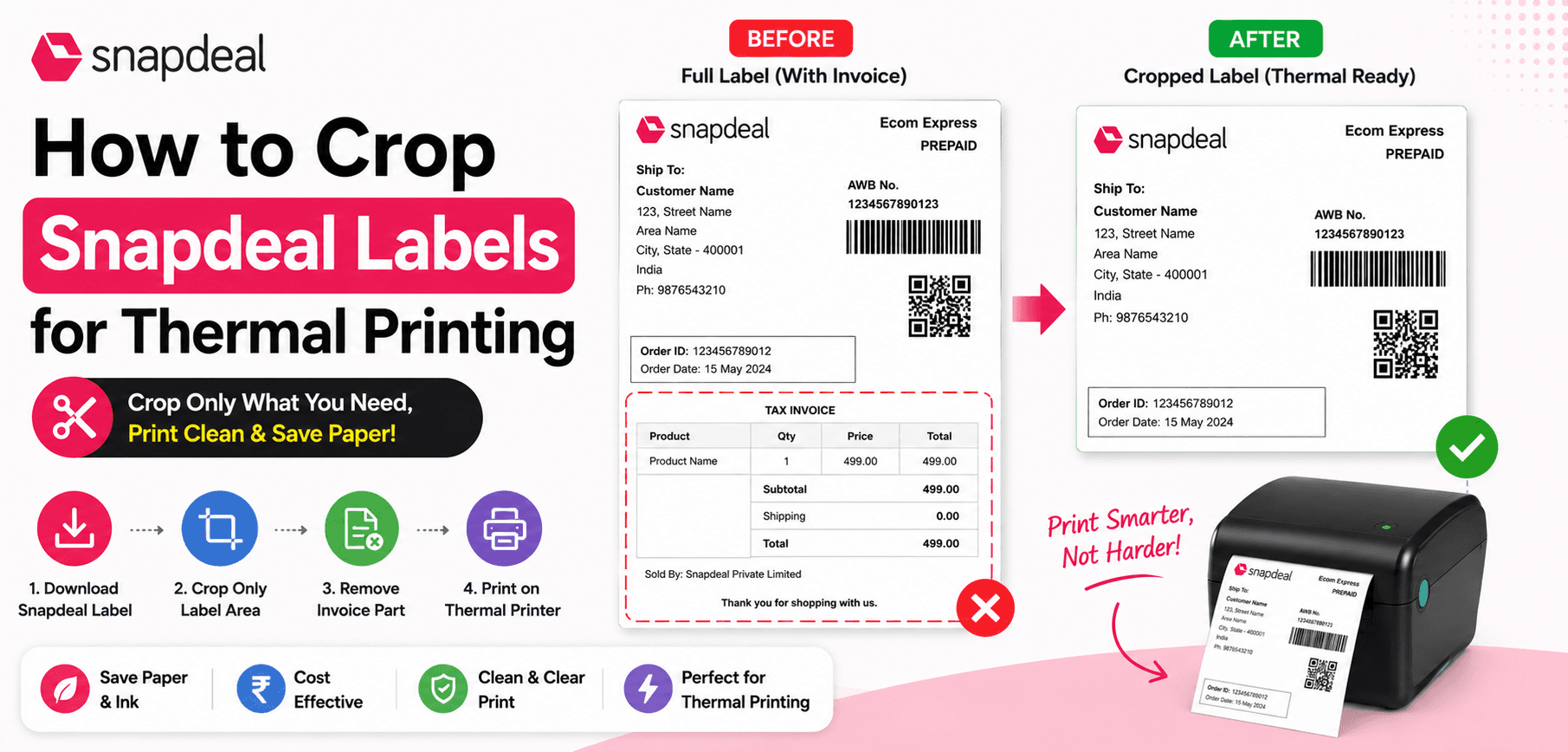
Snapdeal sellers process millions of orders daily across India's tier-2 and tier-3 cities. The logistics operations required to maintain high ratings on Snapdeal heavily depend on fast, accurate dispatch protocols. However, the default A4 PDF labels generated by the Snapdeal seller panel are not optimized for rapid thermal printing.
In this guide, we will break down the structural layout of Snapdeal's A4 shipping documents, explain the mathematics behind vector cropping, and provide a 4-step tutorial on how to perfectly map Snapdeal labels to 4x6 inch (100x150mm) thermal rolls to increase your dispatch speed.
1. The Snapdeal A4 Label Structure
When exporting your daily orders from the Snapdeal dashboard, the resulting PDF places the shipping barcode, AWB number, and customer address on the top half of an A4 page, while the tax invoice and item details are located on the bottom half.
The 4x6 Constraint
Thermal printers are designed for a 1.5 aspect ratio (4x6 inches or 100x150mm). An A4 page cannot fit on this without heavy distortion or shrinking.
Dispatch Delays
If the barcode shrinks, the laser scanners at courier hubs will fail. This forces manual entry by the courier, causing delays and potentially misrouting your package.
2. How the Snapdeal Cropper Solves This
Our Snapdeal Label Cropper relies on precise vector bounding boxes. Instead of converting your document into an image, it modifies the PDF's internal CropBox matrix.
It slices the document exactly in half. Page 1 becomes the top half (the shipping label), perfectly formatted to a 4x6 (100x150mm) aspect ratio. Page 2 becomes the bottom half (the invoice). You can then print this multi-page document sequentially directly onto your thermal roll.
3. Zero-Knowledge Privacy for Sellers
Protecting customer data is a core responsibility. SmartPDFs Plus uses WebAssembly to execute the cropping algorithm entirely within your local browser.
Local Processing
The PDF is processed using your computer's RAM. Your customer details, addresses, and order information are never uploaded or stored on our servers.
4. Automated Workflow Tutorial
Speed up your dispatch process with these four simple steps:
- 1
Export from Snapdeal Panel
In your Snapdeal Seller dashboard, select your pending orders and download the bulk PDF.
- 2
Upload to SmartPDFs Plus
Drag the A4 PDF into the Snapdeal Cropper interface.
- 3
Instant Split
The tool will automatically duplicate and slice every page. A 30-page A4 PDF instantly becomes a 60-page 4x6 thermal PDF.
- 4
Print via Thermal
Open the generated PDF, select your thermal printer, ensure the media size is set to 4" x 6", select "Fit to Printable Area", and print.
Frequently Asked Questions
Will the courier scanner read the cropped barcode?
Yes. Our tool preserves the original vector paths of the barcode. It does not rasterize or reduce the DPI.
Is it free to use?
Yes, the Snapdeal Label Cropper is completely free to use directly in your web browser.
Upgrade Your Snapdeal Fulfillment
Automate your Snapdeal label cropping and print directly to thermal rolls in seconds.