How to Crop Flipkart Labels for Thermal Printing
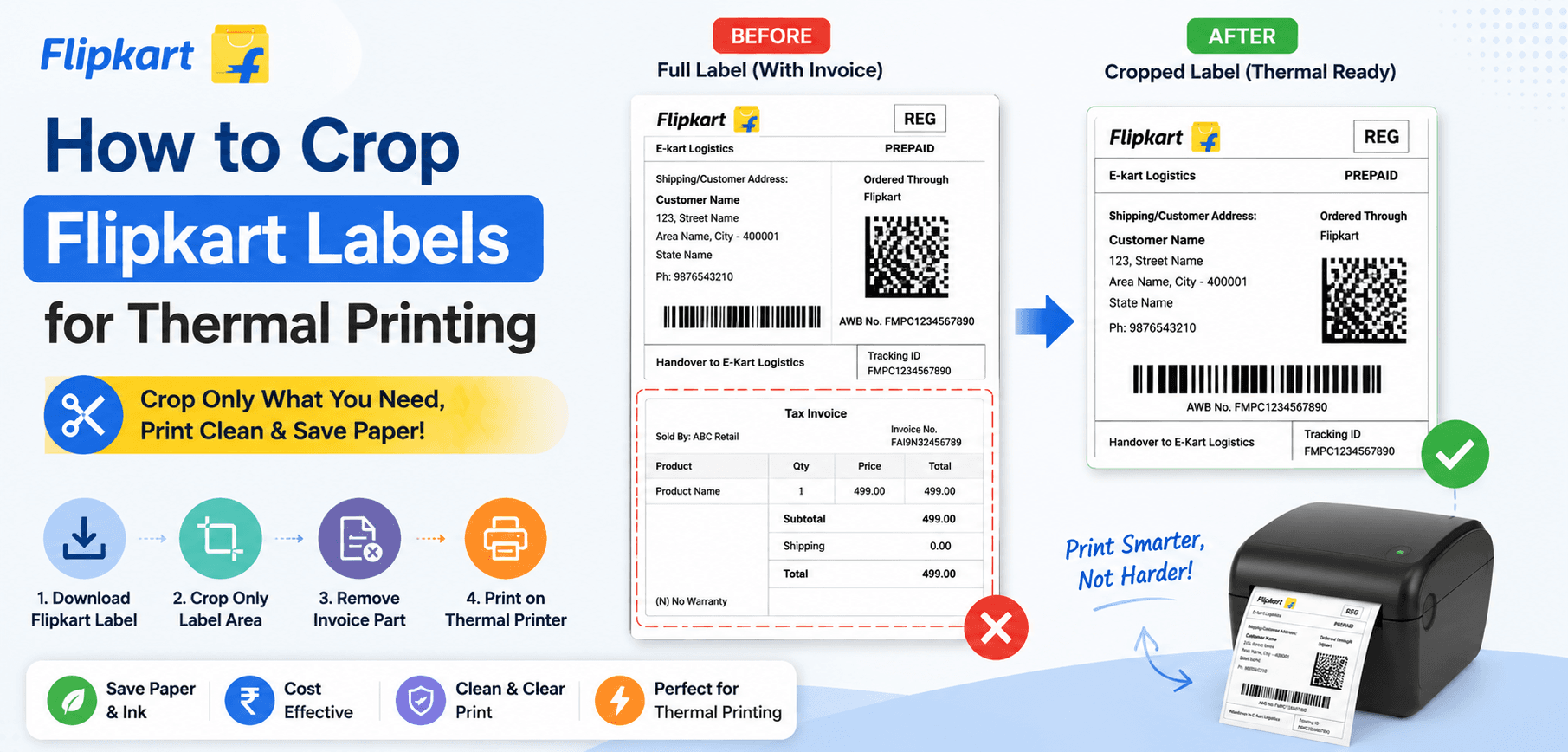
Processing orders on the Flipkart Seller Hub is seamless until it's time to print the labels. Flipkart generates a standard A4 PDF containing the shipping label and the tax invoice. If you are fulfilling orders under the Smart Fulfillment program, you know that printing these A4 sheets on laser printers, folding them, and inserting them into transparent polybags is extremely inefficient.
Modern e-commerce warehouses run exclusively on 4x6 inch thermal printers. In this definitive guide, we will break down the exact dimensions of Flipkart's A4 shipping document, explain how to mathematically isolate the barcode without destroying its scan resolution, and introduce an automated one-click cropping workflow.
1. The Flipkart Label Structure
When you process an order on Flipkart, the generated PDF follows a strict top-down structure on an A4 canvas (210mm x 297mm). The top half contains the routing information, AWB number, Ekart scanning barcodes, and customer details. The bottom half contains the GST tax invoice and return policy details.
The Shrink Problem
If you send the A4 file straight to a thermal printer, it shrinks the entire page to fit a 4-inch width. This causes the intricate lines of the barcode to blur together.
The Ekart Requirement
Ekart delivery agents use mobile scanners. If the barcode is rasterized (turned into a low-res image) or shrunk beyond standard ratios, the scanner fails, and the package is rejected.
2. How the Flipkart Cropper Solves This
Our Flipkart Label Cropper relies on precise vector bounding boxes. Instead of converting your document into a JPG, cutting it, and converting it back to a PDF (which destroys DPI), our tool modifies the PDF's internal CropBox array.
It slices the document exactly in half at the 148.5mm horizontal mark. Page 1 becomes the top half (the label) perfectly formatted to a 100x150mm ratio. Page 2 becomes the bottom half (the invoice). You can then print this 2-page document sequentially on your thermal roll.
3. Zero-Knowledge Privacy for Sellers
As a seller, your PDFs contain highly sensitive Personally Identifiable Information (PII) including customer names, addresses, and phone numbers.
Secure Local Processing
Never upload unencrypted customer orders to random internet servers! SmartPDFs Plus uses WebAssembly to execute the cropping algorithm entirely within your Google Chrome or Safari browser. The PDF is processed using your computer's RAM. No data is ever transmitted to our cloud servers.
4. Automated Workflow Tutorial
Transform your dispatch process with these four simple steps:
- 1
Export from Seller Hub
In your Flipkart Seller Dashboard, select your "Ready to Dispatch" orders and click "Download Labels".
- 2
Upload to SmartPDFs Plus
Drag the massive A4 PDF into the Flipkart Cropper interface.
- 3
Instant Split
The tool will automatically duplicate and slice every page. A 100-page A4 PDF instantly becomes a 200-page 4x6 thermal PDF.
- 4
Print via Thermal
Open the generated PDF, select your TSC or TVS thermal printer, ensure the media size is set to 4" x 6", select "Fit", and print.
Frequently Asked Questions
Will the Ekart scanner read the cropped barcode?
Yes, 100%. Our tool preserves the original vector paths of the barcode. It does not rasterize or reduce the DPI, ensuring perfect scans.
Can I use this for Flipkart Smart Fulfillment?
Yes, this tool is specifically designed for the label formats generated by the Flipkart Smart Fulfillment program.
What if Flipkart changes their PDF layout?
We constantly monitor the major e-commerce platforms. If Flipkart updates their label coordinates, we instantly update our backend slicing algorithms to match.
Upgrade Your Fulfillment Pipeline
Stop folding A4 paper. Automate your Flipkart label cropping and print directly to thermal rolls in seconds.